
Set up payments
Connect Razorpay, PhonePe or Cashfree for online UPI & card payments, and add your UPI ID and bank details for manual/COD orders.
Last updated 28 August 2026
To set up payments, do two things: connect Razorpay under Settings → Integrations so customers can pay online with UPI, cards and net banking, and fill in your UPI ID and bank details under Settings → Payments & invoices so COD and bank-transfer customers know where to pay you. Which options a customer actually sees at checkout is controlled under Settings → Checkout. You can use online payments, manual payments, or both — and you can start selling with COD or WhatsApp before Razorpay is connected.
What customers see at checkout
On the checkout page, under Payment Method, a customer can pick from up to three options:
- Pay online with Razorpay (or PhonePe, Cashfree, Stripe, PayPal) — shown once you have connected that payment gateway and switched it on. Each one carries the gateway's logo, lists what the customer can pay with (UPI, cards, net banking or wallets) and says what happens next: a Razorpay window opens on the page, while the others take the customer to the gateway's own page and bring them back. If you connect more than one, each appears as its own option.
- Cash on Delivery — Pay when you receive the product. If you set an Extra COD charge under Settings → Checkout, it is shown next to the option and added to the total.
- Pay the store directly — By UPI or bank transfer, after you order. This is the Bank Transfer / UPI option: no gateway is involved and the customer sends the money to you themselves. The customer places the order and your UPI ID, bank details and payment instructions appear on their order-placed screen and in their confirmation email (the invoice carries them too — see below).
The last two are on by default. Untick Show Cash on Delivery or Show Pay with UPI / Bank Transfer under Settings → Checkout → Order methods to hide either. If Show WhatsApp checkout is ticked, customers also get a WhatsApp tab next to Direct Order (Default method decides which is pre-selected). On the WhatsApp tab the payment options are hidden: the order opens a chat with your store number and is saved as a manual-payment order so you can settle in chat. Full details in Checkout options.
Accept online payments with Razorpay
Online payments — UPI and cards — are handled by Razorpay. You connect your Razorpay account once and customers can then pay securely at checkout, with the money settling into your own bank account. Sign in to the Razorpay account whose linked bank account should receive the settlements.
- 1From your store dashboard, open Settings → Integrations.
- 2On the Razorpay Payments card, click Connect with Razorpay.
- 3You'll be redirected to Razorpay to authorise securely — no API keys to copy, just sign in and approve.
- 4You come back to the Integrations screen with a Razorpay connected successfully! message, and the card shows Active with Connected via OAuth and your account ID. Customers can now pay online at checkout.
Don't have a Razorpay account yet?
You can still sell from day one — turn on Cash on Delivery or WhatsApp checkout and collect payment manually. See Checkout options.
You can pause online payments anytime with the toggle on the Razorpay card — the status flips to Paused, the Pay online with Razorpay option disappears from checkout and customers order via COD, bank transfer or WhatsApp instead. Disconnect removes the connection entirely; click Connect with Razorpay again whenever you want it back.
Razorpay isn't the only option
Two other Indian gateways can be connected the same way, under Settings → Payments & invoices: **PhonePe** and **Cashfree**. Both cover the same ground as Razorpay — UPI, cards, net banking and wallets — and both settle straight into your own account with 0% SitesPlaced commission. They take a few pasted keys rather than a one-click sign-in, which is the only real difference in setup.
Two reasons to care. First, gateways decline a fair number of perfectly genuine small sellers, and they don't all decline the same ones — so if Razorpay said no, one of the others may well say yes. Second, you can have more than one connected at a time: the customer just sees both options at checkout, and if one gateway is having a bad afternoon you are still taking orders.
Selling to customers abroad who pay in dollars, pounds or euros? That is what Stripe and PayPal are for — the Indian gateways above all settle in rupees only.
How an online order is confirmed
When a customer chooses Pay online with Razorpay, the order is created as Pending with payment pending, and the Razorpay window opens. As soon as the payment goes through, SitesPlaced verifies it and the order becomes Confirmed with a green Paid via Razorpay block and the Razorpay payment ID in the order drawer. Stock is deducted only at that moment, so an abandoned payment never eats your inventory. If the customer closes the payment window, the order is marked Cancelled with Payment cancelled by customer and they can simply order again. Razorpay also sends SitesPlaced a server-side confirmation, so an order is marked paid even if the customer's browser dropped off right after paying.
Add your UPI ID & bank details
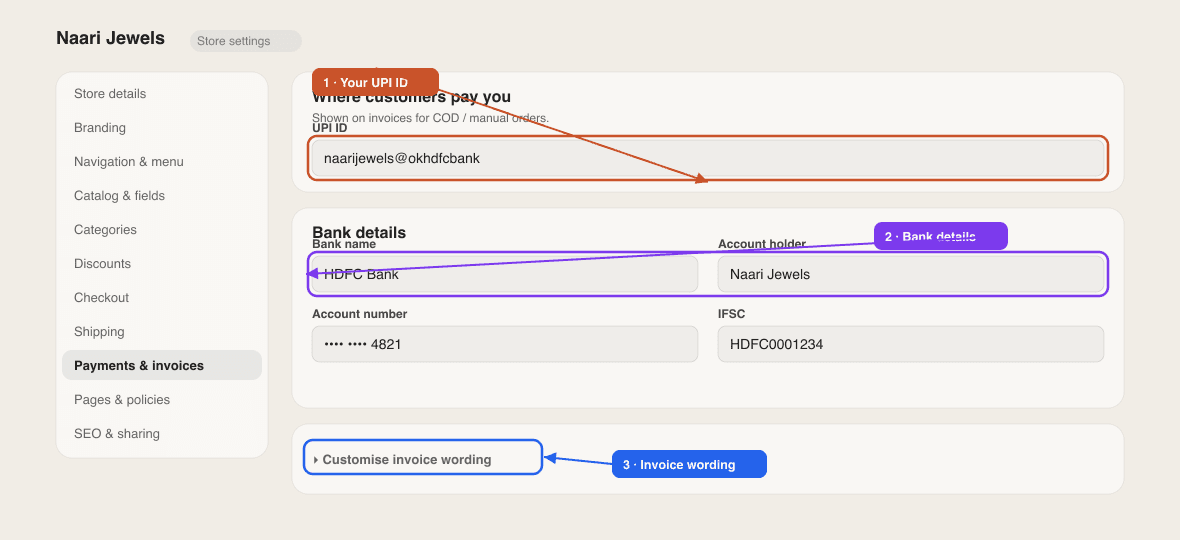
For COD and bank-transfer orders, customers need to know where to pay you. Open Settings → Payments & invoices and fill in the Payment details card:
- UPI ID — e.g.
yourname@upi. - Bank name, Account number, IFSC code and Account holder name — bank name, account number, IFSC code, and account holder name.
- Payment instructions (optional) — a short note shown to customers (e.g. "Pay via UPI and share the screenshot on WhatsApp. For COD, keep exact change ready.").
Press Save in the bar that appears at the bottom. These details appear on your invoices and, for every Bank Transfer / UPI order, on the customer's order-placed screen and in their confirmation email — so customers always know how to pay you — see Invoices. They are not shown on the checkout page itself: the Bank Transfer / UPI option tells the customer the store will share details after the order, and that happens the moment the order is placed. If a customer ordered without an email address, open the order and send your UPI ID or the invoice on WhatsApp.
Online payments and manual details work together. Connect Razorpay for instant online checkout, and fill in your UPI/bank details so your COD and WhatsApp orders still get a clear way to pay. A printable UPI QR for your packaging or counter is two clicks away with the free UPI QR code generator.
Good to know
- COD and bank-transfer orders show an Unpaid badge. That is normal — there is no online payment to verify. When you mark the order delivered, its status becomes Completed, and an invoice downloaded after that prints COMPLETED / PAID.
- Pending Razorpay order, but the customer says they paid? Open the order — a Payment status: Pending box offers Mark as paid. Check the payment in your Razorpay dashboard first, then press it; the order flips to Confirmed and stock is deducted once.
- Currency comes from Settings → Store details → Currency. Razorpay settles in the currency your Razorpay account supports; if you sell in INR, leave it on INR.
- COD charge (Settings → Checkout) is added only to Cash on Delivery orders and printed as its own COD charge line on the invoice. Online and WhatsApp orders are never charged it. Not sure whether to offer COD at all? Run the numbers in the COD vs prepaid calculator.
- A Legacy Key line on the Razorpay card means the store was connected with API keys in an older version. Click Disconnect, then Connect with Razorpay to move to the secure sign-in connection.
Troubleshooting
- "Razorpay connection failed" after coming back from Razorpay — you pressed back or declined, or the sign-in timed out. Click Connect with Razorpay again and approve the request while signed in to the right Razorpay account.
- A customer sees "Could not open payment window" — their browser blocked the Razorpay script. The message already asks them to disable ad-blockers and retry; it is not a problem with your store.
- "Payment was cancelled. Please try again." — the customer closed the Razorpay window. The order is marked Cancelled on your side; a fresh attempt creates a new order, so you will not get duplicates.
- Pay online with Razorpay is missing from checkout — the Razorpay card is Paused or Not Connected. Check the toggle under Settings → Integrations, then reload your store.
For a walkthrough that puts these settings in the right sequence — including which methods to show for which kind of store — see Set up payments the right way. The Razorpay, Cash on delivery and WhatsApp checkout pages summarise what each method does.
Does SitesPlaced take a commission on my sales?
No — there's 0% commission on your store sales. Razorpay charges its own standard payment-gateway fee on online transactions; that's between you and Razorpay.
Where does the money go?
Online payments settle directly into the bank account linked to your own Razorpay account. SitesPlaced never holds your money.
Can I accept international cards?
Online card and UPI payments run through your Razorpay account, so what you can accept depends on your Razorpay setup. If you need help, contact support.
Is Razorpay available on the free plan?
Yes. Razorpay, Cash on Delivery, Bank Transfer / UPI and WhatsApp checkout are all included on the free plan with 0% commission. See Pricing.
Can I show only online payments and hide COD?
Yes. Under Settings → Checkout → Order methods, untick Show Cash on Delivery (and Show Pay with UPI / Bank Transfer if you want online-only). With Razorpay active, Pay online with Razorpay becomes the only option.
Related articles
Didn't find what you needed? Ask an AI assistant about this guide. It answers in seconds.