
Checkout: order methods & form
Choose how customers order — Direct Order, WhatsApp, COD or UPI — and control exactly what they fill in, the minimum order, trust badges and wording.
Last updated 20 September 2026
Settings → Checkout (or search checkout in Settings) decides how customers place an order and exactly what details they give you. Customers can order through a normal Direct Order checkout — paying online via Razorpay, with Cash on Delivery, or by paying you directly by UPI or bank transfer — or send their cart to you as a WhatsApp message. All of these are included on the free plan, and every order, whichever method, lands in your Orders tab. This page also sets which contact fields are required, a minimum order value, branded order numbers, trust badges and the wording on the checkout screen. Remember to press Save in the bar at the bottom when you are done.
Order methods
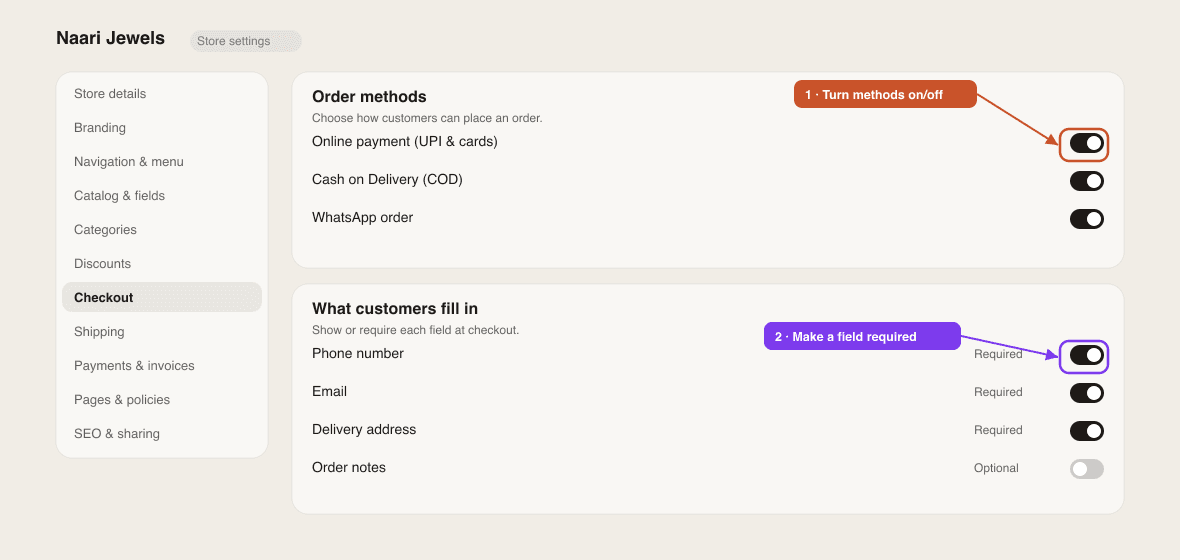
In the Order methods card, pick a Default method — Direct Order (a normal checkout form that creates the order, emails you, and takes payment online or on delivery) or WhatsApp (the customer fills in their details, the order is saved, and their cart opens as a pre-written WhatsApp message to your number). The default is simply the option pre-selected when a customer reaches checkout; they can switch to the other if you show both. Then tick which options to offer:
- Show WhatsApp checkout — let customers send their cart over WhatsApp to confirm. Needs your WhatsApp number (with country code) under Settings → Store details. The message lists every item, the customer's address, any coupon, delivery and the total, and ends with your store link. You settle payment in the chat.
- Show Cash on Delivery — the customer pays when the order arrives. When it is on, an Extra COD charge field appears: enter an amount (e.g. ₹50) to add a cash-handling fee to COD orders only. It is shown next to the COD option at checkout, added to the total and printed on the invoice; online and WhatsApp orders are never charged it. Leave it at 0 for no surcharge.
- Show Pay with UPI / Bank Transfer — offers a Pay the store directly option (By UPI or bank transfer, after you order) that places the order first and then shows the customer how to pay you. Your UPI ID, bank details and payment instructions come from Settings → Payments & invoices: the customer sees them the moment the order is placed — on the order-placed screen and in their confirmation email — and they are printed on the invoice, so fill those in if you use this option.
Three more switches on this screen have their own guides: the Pause ordering card at the top is covered in Pause ordering on your store, the Close the store card under it in Close your store with an opening-soon page, and WhatsApp is the only way to order and Take every order on WhatsApp are covered in Take orders on WhatsApp.
Want instant online card/UPI payments?
Connecting Razorpay adds a Pay online with Razorpay option (UPI, cards, net banking or wallets, with the Razorpay logo) to the Direct Order checkout, and it becomes the pre-selected payment method. Money settles to your own bank account. It is a one-time Connect with Razorpay under Settings → Integrations — see Set up payments. The Pay with UPI / Bank Transfer toggle above is for manual payment instead.
Which payment method makes sense? COD wins orders from first-time buyers but brings returns and cash handling; prepaid is cleaner but converts lower. The COD vs prepaid calculator shows the maths for your margins, and Set up payments the right way walks through a sensible combination.
Checkout form fields
The Checkout form fields card decides which details customers must give. The customer's name is always asked for. For Email, Phone and Delivery Address you tick Show and, separately, Required:
- Phone — keep it required. It is needed for delivery, for couriers, and for you to reach the customer. Indian numbers are checked to be a valid 10-digit mobile.
- Email — used for the customer's order confirmation email. It is only enforced on Direct Orders; a WhatsApp order never blocks on email.
- Delivery Address — when required, the customer fills in Flat / House No. & Building, Area, Street & Locality, City, State and a 6-digit Pincode. All five are needed for a courier to print a label, which is why they are required together. If you only sell pickups or digital goods, untick Show.
- Order Notes — tick Show to add a free-text box for special instructions (gift message, delivery time). You can set its Notes label and Notes placeholder.
The checkout checks the details before the button activates and rejects obvious junk: a name that is one repeated letter or has no letters at all, and for Indian orders a phone number that is not a real 10-digit mobile (it must start with 6, 7, 8 or 9) or a pincode that is not six digits. The checks are deliberately light, because turning away a real buyer costs more than the odd junk order. To stop someone who keeps placing fake orders, see Stop fake and spam orders.
Postal code and Landmark
Two more rows in the Checkout form fields card are for stores whose buyers do not use postal codes, such as Kuwait and Qatar. There, a courier finds the door from a nearby shop or building, not from a number.
- Postal code / Pincode has a Show box only, ticked by default. Untick it and checkout stops asking for a postal code. There is no Required box on purpose: whether the code must be filled in is decided by the country the buyer picks at checkout. It is compulsory for an Indian address and optional for a Kuwaiti one.
- Landmark has Show and Required boxes, both off by default. Tick Show to add a Landmark box to the address, for something like “opposite the Sultan Center”. Tick Required as well if you cannot deliver without one.
- The landmark is saved as part of the order's address, after the street lines, and starts with “Landmark:”. So it shows wherever the address does: in the order, on the invoice, in the order emails, in the WhatsApp order message and in the address handed to a courier.
- Both live inside the address block. If you untick Show on Delivery Address, or the cart holds only digital downloads, neither is asked for.
Leave the postal code on if you ship inside India
Indian couriers, including Shiprocket and Shipmozo, cannot book a shipment without a pincode. The dashboard shows the same warning under the card when you untick the box. Turn it off only if your buyers are in a place where postal codes are not used.
Customer accounts
Tick Enable customer accounts to let shoppers create an account with email and password on your store. They get an account page with their order history and saved delivery details, checkout pre-fills for them, and the header account icon (under Navigation & menu → Header icons) opens their account. Guest checkout always stays available, so nobody is forced to sign up. Password-reset emails are sent on your store's behalf.
Minimum order, order IDs, badges & wording
- Minimum order — set a Minimum order value and the Message when below minimum (e.g. Minimum order is ₹500). Customers see the message until their cart reaches the value. Set it to 0 for no minimum.
- Order ID format — give orders branded sequential numbers. Enter an Order ID prefix (letters, numbers and dashes, up to 12 characters) and Start counting from; the card previews the result, e.g. MYSTORE-0001, MYSTORE-0002. Leave the prefix empty to keep random IDs like ORD-A3X7K2. The counter only moves forward and never reissues a number. Order numbers are also the invoice numbers — see Invoices.
- Trust badges — short reassurance lines shown below the checkout button, such as 100% secure payments or Ships in 24 hours. Press + Add Badge for each line.
- Checkout wording — open Customise titles, button text & success message to change the Checkout title, Checkout subtitle, Direct order button text (e.g. Place Order), WhatsApp button text (e.g. Checkout on WhatsApp) and the Success message shown after an order is placed.
What happens after an order is placed
Every order — Direct or WhatsApp, paid or COD — is saved to your Orders tab, you get an email, the Android app sends a push notification, and the customer gets a confirmation email if they gave one. Stock is deducted when a COD, UPI or WhatsApp order is placed; for Razorpay orders it is deducted only once the payment succeeds, so an abandoned payment never holds stock. If you have connected the WhatsApp Business API, the customer also gets a WhatsApp confirmation from your number — see WhatsApp order notifications. Managing the order from there is covered in Manage orders & shipments.
Good to know & troubleshooting
- The WhatsApp button is missing on my store — either Show WhatsApp checkout is off, or your WhatsApp number in Store details is empty or missing the country code (
91for India). - No payment options appear at checkout — Razorpay is not connected and both Show Cash on Delivery and Show Pay with UPI / Bank Transfer are off. Turn at least one on, or connect Razorpay.
- Customers say the order button is greyed out — a required field is empty or invalid. The message under the field (e.g. Enter a valid 6-digit pincode to continue.) says which. If you do not need an address, untick its Show box.
- The COD charge is not showing — it only appears when the customer selects Cash on Delivery, and only on Direct Orders. WhatsApp orders never carry it.
- Delivery charges are set separately under Settings → Shipping — see Set delivery charges. The COD charge stacks on top of the delivery charge.
- Want a WhatsApp order link outside the store (for a story or a bio)? The WhatsApp link generator makes a pre-filled message link in seconds.
Can I offer WhatsApp, COD and online payment at the same time?
Yes. Turn on Show WhatsApp checkout, Show Cash on Delivery and connect Razorpay. Customers then choose between a WhatsApp order and a Direct Order, and inside Direct Order pick Pay online with Razorpay, Cash on Delivery or Pay the store directly (UPI or bank transfer).
Do WhatsApp orders show up in my dashboard?
Yes. The customer's details and cart are saved as an order before the WhatsApp chat opens, so you can confirm, ship and invoice it from the Orders tab like any other order.
Is there a charge for using Razorpay, COD or WhatsApp checkout?
SitesPlaced takes 0% commission on every method and all three are included on the free plan. Razorpay charges its own payment gateway fee on online payments, which is settled between you and Razorpay.
Can I make phone optional?
Yes — untick Required next to Phone. We recommend keeping it required for anything you ship, because couriers need it and it is how you reach the customer if something goes wrong.
How do I restrict orders to my city?
There is no pincode restriction at checkout. Say it clearly in the Checkout subtitle or a trust badge, set a delivery charge waiver for local customers under Shipping, and check the address before confirming an order.
Related articles
Didn't find what you needed? Ask an AI assistant about this guide. It answers in seconds.