
How to get paid: choosing your payment setup
The three places payments live, and how to combine online (Razorpay), manual UPI/bank, COD and WhatsApp so customers can actually pay you.
Last updated 23 August 2026
To get paid on SitesPlaced you turn on one or more order methods in Checkout, connect Razorpay if you want instant online payments, and fill in your UPI ID and bank details for the orders you collect yourself. SitesPlaced takes 0% commission and never holds your money. Payments feel confusing at first because those controls live in three different places. Once you see why, it's simple:
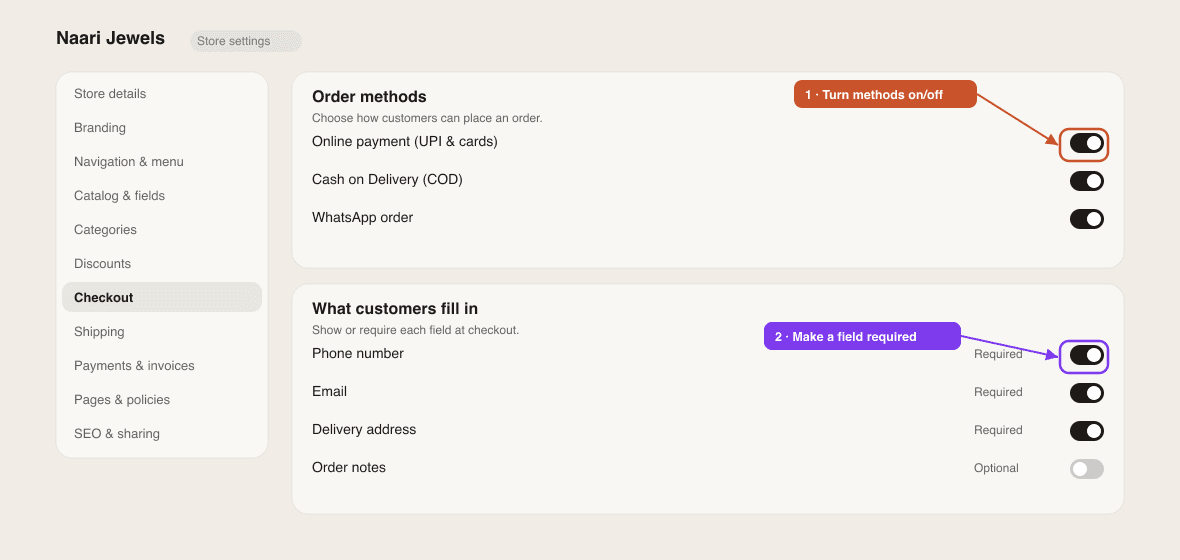
- Settings → Checkout — which order methods customers see (WhatsApp, Cash on Delivery, Pay with UPI / Bank Transfer), plus the optional Extra COD charge.
- Settings → Payments & invoices — your UPI ID, Bank name, Account number, IFSC code, Account holder name and Payment instructions. These print on the invoice PDF you send for manual and COD orders.
- Settings → Integrations — the Razorpay Payments card. Connect once and a Pay online with Razorpay option appears at checkout.
Pick your methods
You can offer any mix. Here's what each one means, and what the customer sees at checkout:
- Online payment (Razorpay) — the checkout shows Pay online with Razorpay with the Razorpay logo, UPI, cards, net banking or wallets, and a line saying a Razorpay window opens on the page. The customer pays in that window, the order is verified on our servers and arrives in Orders already marked ✓ Paid via Razorpay. Money settles to your own bank on Razorpay's schedule; you pay only Razorpay's gateway fee.
- Cash on Delivery — the checkout shows Cash on Delivery — Pay when you receive the product. If you set an Extra COD charge in Checkout, it is added to the total and shown next to the option (online and WhatsApp orders are never charged it).
- Pay with UPI / Bank Transfer — the checkout shows Pay the store directly — By UPI or bank transfer, after you order, with a line explaining that the customer orders first and then pays you from their own app. Your UPI ID and bank details are not shown on the checkout page; once the order lands they appear on the order-placed screen and in the customer's confirmation email (from Settings → Payments & invoices). Good for made-to-order items and custom quotes.
- WhatsApp — the customer fills in their details, the order is saved to your Orders tab, and their WhatsApp opens with the cart pre-typed to your number. You arrange payment in the chat.
Recommended setup
- 1Connect Razorpay — open Settings → Integrations, find Razorpay Payments and click Connect with Razorpay. You are sent to Razorpay to sign in and approve; no API keys to copy. The card then shows Active with a toggle you can use to pause online payments later. Details: Set up payments.
- 2Fill in Payments & invoices — at minimum your UPI ID (e.g.
yourname@upi) and a line of Payment instructions such as "Pay via UPI and share the screenshot on WhatsApp". This goes on every invoice. - 3Choose order methods in Checkout — pick the Default method (Direct Order or WhatsApp), then tick Show Cash on Delivery, Show Pay with UPI / Bank Transfer and Show WhatsApp checkout as you like. Set an Extra COD charge if couriers charge you for cash handling.
- 4Check your WhatsApp number under Settings → Store details — with the country code (
91…for India, as in the919999999999example). WhatsApp checkout opens this number. - 5Press Save, then place a test order on your live store with each method you enabled.
0% commission
SitesPlaced takes no commission on your sales on any plan, including the free one. With Razorpay you pay only Razorpay's standard gateway fee, and the money goes straight to your bank — we never hold it.
No Razorpay yet? Start anyway
You can sell from day one with COD or WhatsApp and collect payment manually. Add Razorpay whenever you're ready — nothing else needs to change. Use the COD vs prepaid calculator to see what COD returns actually cost you.
Good to know
- Online orders and stock. A Razorpay order only deducts stock once payment succeeds. If the customer closes the payment popup, the order is cancelled automatically with the note "Payment cancelled by customer" — you can ignore those.
- Paid but still "Payment pending"? Very occasionally Razorpay confirms a payment after the customer has left the page. Open the order and click Mark as paid — this button only appears on Razorpay orders that are still pending.
- COD and manual orders show a COD or Manual payment badge and Unpaid — there is no paid switch for these. When the money arrives, record it with a comment via More options on the order (see How to fulfil an order).
- Sharing your UPI details. Open the order and click Invoice (PDF) — the PDF carries your UPI ID, bank details and instructions. Send it on WhatsApp with the one-tap WhatsApp button in the same order. A printable UPI QR from the UPI QR code generator works well for in-person sales.
- Pausing Razorpay (the toggle on the Integrations card) hides Pay online with Razorpay at checkout; your COD, UPI and WhatsApp options keep working. Disconnect removes it entirely.
- Automatic alerts. You get an email for every order. On the Growth plan you can also send WhatsApp confirmations from your own business number — see WhatsApp order notifications.
Troubleshooting
- Pay online with Razorpay is missing at checkout — check the Razorpay card says Active, not Paused or Not Connected, and that your Default method is Direct Order (the payment choice only appears for direct orders, not WhatsApp).
- Cash on Delivery is missing — untick/tick Show Cash on Delivery in Checkout and press Save.
- WhatsApp button opens a blank chat — the number under Store details is wrong or missing the country code.
- Customers ask where to pay — your Payment instructions are empty. Add one clear line, and consider turning off Show Pay with UPI / Bank Transfer until you have time to reply quickly.
Once orders come in, here's how to fulfil one, and how invoices work. Each method also has its own overview page: Razorpay, Cash on Delivery and WhatsApp checkout.
Does SitesPlaced charge a commission or a payment fee?
No. SitesPlaced takes 0% on every plan. The only fee is the gateway fee Razorpay charges on online payments, which is settled between you and Razorpay.
Do I need a GST number or a company to connect Razorpay?
That is decided by Razorpay during their account activation, not by SitesPlaced. Connect whatever Razorpay account you already have; if it is not yet activated, keep COD and WhatsApp on in the meantime.
Can I show my UPI ID on the checkout page itself?
Not on the checkout page itself. The Pay the store directly option tells the customer they will get your details after the order — and as soon as it is placed, your UPI ID, bank details and Payment instructions from Settings → Payments & invoices appear on the order-placed screen and in their confirmation email. They print on the invoice PDF too.
Can I offer COD only above a certain order value?
Not as a separate rule. You can set a store-wide Minimum order value in Checkout, and an Extra COD charge that nudges customers to pay online.
What happens to stock when a COD order is placed?
COD and manual orders deduct stock as soon as they are placed (on stores that track stock). If you cancel the order, the stock is restored.
Related articles
Didn't find what you needed? Ask an AI assistant about this guide. It answers in seconds.