
Edit your store menu & navigation
Hide links you don't need, rename them, reorder them, or add your own — in the header menu and the footer.
Last updated 18 June 2026
Your store's header menu is the row of links at the top of every page — usually *Home, Products, Blog, Track Order, About, Contact*. You can hide any link you don't need, rename it, reorder the menu, or add your own links. The same editor controls your footer links and social links.
Quick path
Store dashboard → Settings → Navigation & menu. (You can also type "menu" into the settings search box.)
Open the menu editor
- 1From your store dashboard, open Settings.
- 2In the settings list, choose Navigation & menu. (Tip: the search box at the top of Settings — search menu, navigation or remove link.)
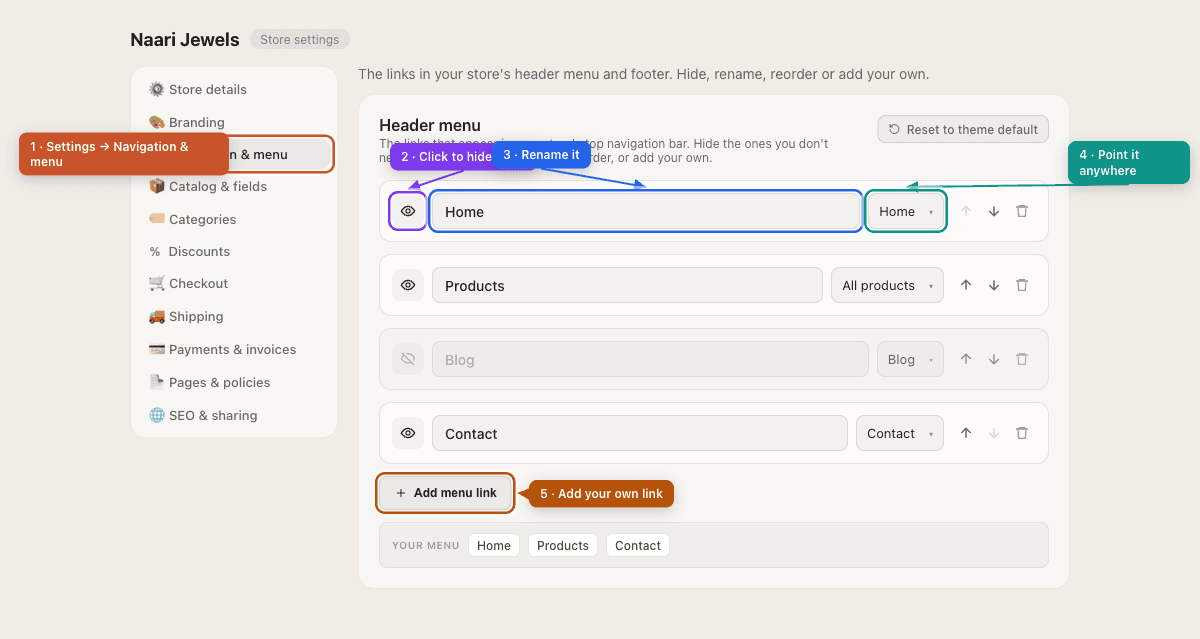
Hide a link you don't need
Every menu link is a row. To remove a link from the menu without deleting it, click the eye icon on its left so it turns to a crossed-out eye — that link is now hidden from your storefront. Click it again any time to bring the link back.
To delete a link entirely, click the trash icon on its right.
Prefer to start fresh? Use Reset to theme default (top-right of the Header menu card) to discard your changes and go back to your template's built-in menu.
Rename, reorder & add links
- Rename — type a new label in the link's text box (e.g. change *Products* to *Shop*).
- Reorder — use the up / down arrows to move a link earlier or later in the menu.
- Change where it points — use the destination dropdown to pick a store page (Home, Products, Blog, About, Contact, Policies, Track Order…), or choose Custom link… to link anywhere, including an external URL.
- Add a link — click Add menu link and set its label and destination.
- Show store name beside logo — a toggle to display your store name next to the logo in the header.
As you edit, the preview at the bottom of the card shows exactly which links will appear, in order.
Footer links & social links
Scroll down in the same Navigation & menu screen to edit your footer links (the "Quick Links" column in your store footer) the same way, and to add social links (Instagram, Facebook, etc.) that show as icons in the footer.
Save your changes
A Save bar appears whenever you have unsaved changes. Click Save, then refresh your live store — your new menu is applied across every page. Your changes work on every storefront template.
Don't see it yet?
Make sure you're in your store dashboard (not a website), and that you're looking at Settings → Navigation & menu. Still stuck? Contact support and we'll sort it out.
Didn't find what you needed?