
Connect your own domain
Put your site on a domain you own, like yourbrand.com — the two ways to connect, and how to choose.
Last updated 23 August 2026
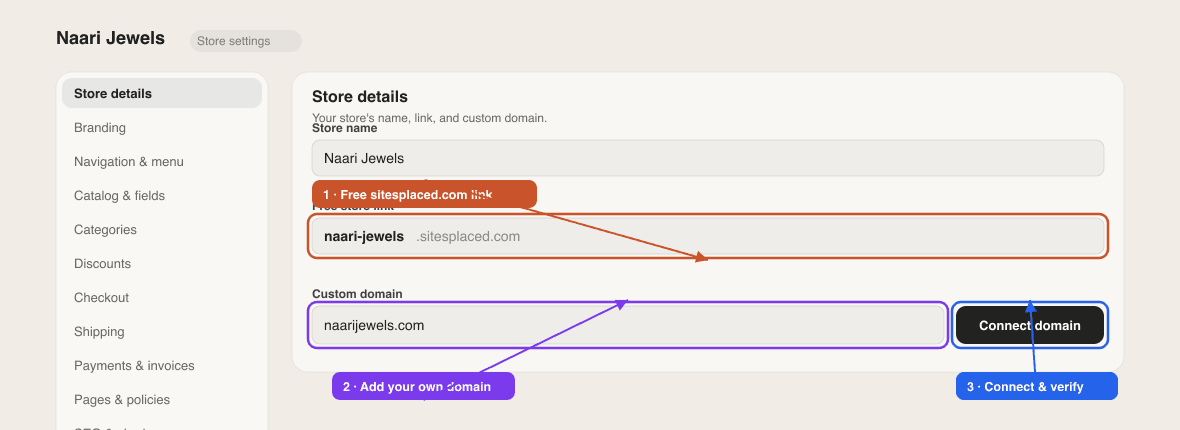
Ready to move from yourname.sitesplaced.com to your own yourbrand.com? You connect a domain by typing it into the Custom domain field in your site's settings, then pointing the domain's DNS records at SitesPlaced — either automatically with a one-click popup, or by copying the records shown on screen into your registrar. Connecting a custom domain is a paid feature, and you only need to set it up once. You'll need a domain you already own from a registrar like GoDaddy, Cloudflare, Namecheap, BigRock or Hostinger.
Don't own a domain yet? Buy one from any registrar first, then come back here to connect it. See current upgrade pricing on the pricing page.
Before you start
- A domain you own, and the login for the registrar where you bought it. SitesPlaced doesn't sell domains.
- A plan that covers this site. Custom domains are unlocked by the Starter plan (₹199/month) and the Growth plan (₹499/month early-bird for the first 50 stores, ₹999/month after) on any website or store, and by the one-time ₹99 Student unlock on student portfolios. The Student unlock only counts for a student portfolio — it won't attach a domain to a store. On the free plan the field is replaced by a panel that says Custom Domain is a Pro feature with an Upgrade to Pro button; see Plans overview.
- A published site. A custom domain only serves a site that is currently published. If you've unpublished it, visitors to
yourbrand.comwon't see anything.
Add your domain
- 1For a store: from your dashboard, open Settings → Store details and find the Custom domain field. For a website or portfolio: open the builder and scroll the editing panel to the Custom Domain heading.
- 2In the Your Domain box (placeholder e.g. myshop.com), type the domain you own. You can paste it with or without
https://orwww.— SitesPlaced strips both and saves the bareyourbrand.com. - 3Click Save. The status badge changes to Pending DNS verification and a panel opens below it.
- 4If your DNS provider supports one-click setup, the panel starts with Automatic setup available and a Connect automatically with … button. Otherwise it goes straight to Add these DNS records in your domain provider with a table of records to copy.
- 5Follow whichever route you're shown (both are explained below), then click Check Verification Now and wait for the badge to read yourbrand.com is verified and active.
Two ways to connect
Connecting a domain means telling it to point at SitesPlaced. There are two ways to do that:
- One-click "Domain Connect" — offered when your DNS provider supports the Domain Connect standard for SitesPlaced (providers such as GoDaddy, Cloudflare and IONOS use it). You approve the records in a popup at your registrar and they're written for you. This is the easiest option when you see it — see One-click Domain Connect.
- Manual DNS — you copy a few records SitesPlaced shows you into your registrar's DNS settings yourself. Works with any registrar — see Connect a domain manually with DNS.
Which should I pick?
You don't really choose — SitesPlaced shows the one-click button only when your provider supports it, and always shows the manual records underneath. If the button is there, use it; it avoids typos. If it isn't, the manual route takes about five minutes and works everywhere.
What "verified and active" means
SitesPlaced checks your domain's DNS each time you click Check Verification Now. The domain is verified when its main record — an A record or a CNAME — points at SitesPlaced's hosting. A TXT record on its own proves you own the domain but doesn't route any visitors, so the badge stays on Pending until the A or CNAME is in place. Once verified:
- Both
yourbrand.comandwww.yourbrand.comopen your site, with HTTPS set up for you. There's nothing to install. - Every page works on the new address — products, cart, checkout, policies — exactly as it did on the free link.
- Your dashboard's share links and the QR code on the store Home tab switch to the custom domain, and search engines are pointed at it instead of the sitesplaced.com address — see Store SEO.
- Your free
yourname.sitesplaced.comaddress keeps working too.
How long does it take?
Once you've set things up, the change has to spread across the internet — this is called DNS propagation. It's usually quick (minutes), but the dashboard warns it can take 5 minutes to 48 hours to propagate globally. Your free yourname.sitesplaced.com address keeps working the whole time, so your site is never down.
Good to know
- One domain per site. Each site or store has a single Custom domain field. If you run two stores, each needs its own domain.
- Changing the domain restarts verification. Typing a different domain and saving resets the badge to Pending DNS verification; saving the same verified domain again leaves it verified.
- Removing a domain. Click the red bin icon next to the field (Remove domain) and confirm Remove yourbrand.com from this site?. Your site falls back to the free address immediately. You can then add the domain to a different site.
- Branding and domain are separate. The paid plans that unlock a custom domain also remove the SitesPlaced badge, but connecting the domain doesn't do that by itself — see What's included.
- Tell your customers. Once verified, update your Instagram bio, WhatsApp catalogue and any printed material. Old links keep working, so there's no rush, but the new address is the one you want people to remember. The custom domain guide explains why it lifts trust.
Stuck partway through, or your domain isn't showing your site after a few hours? Contact support with your domain name and we'll take a look.
Can I buy a domain through SitesPlaced?
No. Buy it from any registrar — GoDaddy, Hostinger, Namecheap, BigRock, Cloudflare — then connect it here. There's no need to move it afterwards.
Does a custom domain cost extra on top of the plan?
No. The Growth, Starter and Student plans include custom-domain support. You only pay the registrar for the domain itself.
Do I need to add both yourbrand.com and www.yourbrand.com?
Add the two records SitesPlaced shows — one for the bare domain and one for www. After verification both addresses open your site.
Will my customers see a security warning?
Not once the domain is verified — HTTPS is issued automatically. A warning usually means the A record still points at your registrar's parking page; the dashboard flags this as Wrong A record detected. See Manual DNS.
What happens if my plan lapses?
Adding, changing or re-verifying a custom domain needs an active plan that covers the site, so renew before you make domain changes. See Manage your subscription.
Related articles
Didn't find what you needed? Ask an AI assistant about this guide. It answers in seconds.