
A tour of your dashboard
Your dashboard lists every site you've made and is where you create new ones.
Last updated 23 August 2026
Once you're signed in, your Dashboard at sitesplaced.com/dashboard is home base. Under the heading Your Sites it shows a card for every website, store, portfolio or invite you've made, a New Site button to start another, and a plan bar that tells you which plan you are on and how many sites you have used. Click a card's button to open the editor or the Store Dashboard.
What you'll see
- Your Sites — one card per site. Each card shows a Published or Draft badge, the site name, and its link (for example
yourname.sitesplaced.site, or your custom domain once connected). - New Site — the black button at the top right. It opens What do you want to create? with four choices: Personal Website, Student Portfolio, Ecommerce Store and Gym & Fitness Studio.
- Plan bar — shows Free Plan (or your paid plan name) and a count like 2/5 sites. Next to it are upgrade buttons (Starter — ₹199/mo, Growth — ₹499/mo), Manage Plan which opens your billing page, and Earn 25% for the affiliate program.
- Card buttons — Edit opens a website in the site editor; Manage Store opens a store's dashboard; Manage Gym opens the gym CRM. A small arrow icon appears on published sites and opens the live link in a new tab.
- Delete — the bin icon on a card (hover on desktop, always visible on phones) removes that site. This cannot be undone.
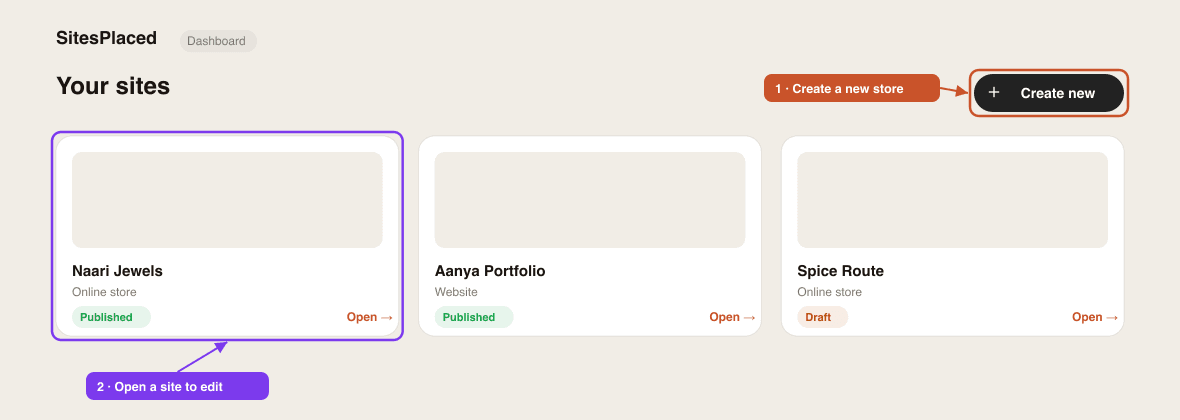
If you have no sites yet the page says No sites yet with a Create Your First Site button — it does the same thing as New Site.
Create a new site
- 1Click New Site.
- 2Pick a type under What do you want to create?
- 3Personal Website and Student Portfolio open the template picker, where you choose a design and then decide between AI-Powered and Start from Scratch.
- 4Ecommerce Store opens the Create Your Store window: enter a Store Name and a Slug (the
yournamepart ofyourname.sitesplaced.site), choose a template, optionally describe what you sell, and click Create Store. - 5Gym & Fitness Studio opens the gym setup flow, which builds the site and CRM from your gym's details.
The whole flow, including the Importer shortcut, is walked through in build your first site or store.
Where each site opens
Websites open in the site editor. It is desktop only: on a phone or tablet you will see a Desktop Only message with Back to Dashboard and Visit Site buttons. The editor has Save and Publish in the header, a Visit link to the live site, and a left panel with General Settings, Custom Domain, Tracking & Code, Design System, Pages and your sections.
Stores open in the Store Dashboard, which works on phones. Its tabs are Home, Orders, Products, Messages, Reviews, Subscribers, Analytics, Design and Settings. The header shows an Open Store link, your plan, a Live or Draft pill and the Publish / Unpublish button. The store dashboard tour covers every tab.
Building an online store?
Stores open into their own dashboard with Products, Orders, Design and Settings. See open your free online store.
Other pages off the Dashboard
- Manage Plan (
/dashboard/billing) — see your current plan, upgrade, or manage a subscription. See manage your subscription. - Earn 25% (
/dashboard/affiliate) — your referral link and payouts. - Your avatar (top right) — account settings and Sign out.
- Dashboard in the main site menu — from any marketing page, this button brings you back here.
Good to know
- Draft vs Published. A store starts as a Draft and only you can see it until you press Publish. Websites you create from a template are published as soon as they are created, so edit, then Publish again to push changes live.
- Site count. The x/5 sites counter includes drafts. Delete sites you no longer need to free a slot.
- Nothing loads? The Dashboard needs JavaScript and a modern browser. Refresh once; if a card seems stuck, open it directly and come back.
- Don't see a store you imported? Check you are signed in with the same method you used on the import preview. Imported stores appear on the Dashboard as soon as the publish finishes.
Where are my sites?
All of them are on sitesplaced.com/dashboard under Your Sites. If the list is empty, you are likely signed into a different account — sign out and sign in with the other method.
Can I rename a site?
Yes. For a website, open Edit and change Site Name under General Settings. For a store, open Manage Store, go to Settings and edit Store name under Store details.
How do I delete a site?
Hover over its card on the Dashboard and click the bin icon (on phones it is always visible). Deleting is permanent, including a store's products and orders.
Why does the upgrade button show a price in dollars?
Prices are shown in your local currency. Indian accounts see rupees; visitors from other regions see their regional price. The pricing page has the full table.
Didn't find what you needed? Ask an AI assistant about this guide. It answers in seconds.