
Create your account
Sign up in seconds from sitesplaced.com — no card needed to start building.
Last updated 23 August 2026
Getting started is free and takes about a minute. Go to sitesplaced.com, click Start Building Free, and sign up with Google or with an email address and password. You don't need a card — you only pay if you later choose a custom domain or a premium add-on. After sign-up a short onboarding asks what you are building, and then your Dashboard opens.
Sign up
- 1Go to sitesplaced.com.
- 2Click Start Building Free at the top right (on a phone, open the menu first).
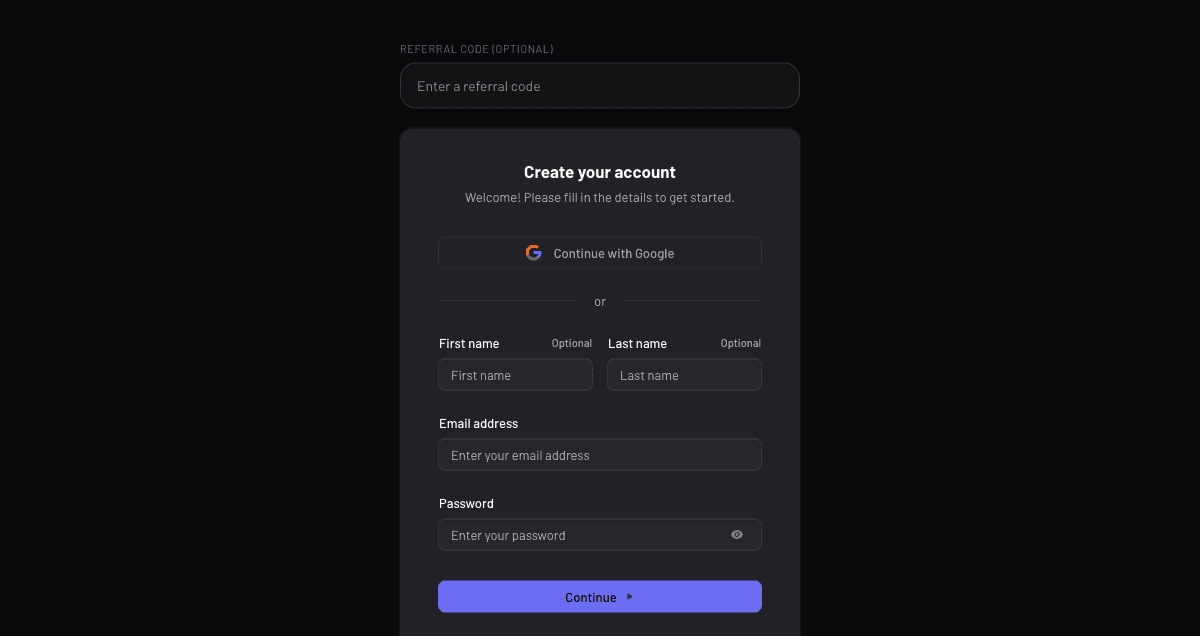
- 3If a friend gave you a referral code, type it in the Referral code (optional) box above the form. A green tick means it was accepted. You can leave this empty.
- 4On the Create your account card, click Continue with Google, or fill in Email address and Password (first and last name are optional) and click Continue.
- 5If you used email, enter the verification code sent to your inbox when asked.
- 6Answer the short onboarding — who you are, what you sell, and what you want to build — or click Skip for now to go straight to your Dashboard.
The onboarding questions
Right after sign-up you will see Let's get to know you. It is three quick screens: who you are (for example Small business owner, Creator / influencer or Student), what you sell, and where you heard about SitesPlaced. Then What are we building today? lets you pick Website / Portfolio, Online store, Student portfolio, Gym website + CRM or Wedding / event invite. Finally, Start with what you already have. offers Import what I already have (opens the Importer) or Start fresh (opens the template picker).
None of this is locked in. Every answer can be skipped with Skip this step, and whatever you pick you can still create any other type of site later from the Dashboard.
Sign back in
Use the Sign in button on sitesplaced.com and choose the same method you signed up with. If you used Google, click Continue with Google again; if you used email, enter the same email and password. You will land on your Dashboard with every site you have made.
Signed up from an import preview?
If you built a store preview with the Importer first, the Sign up & publish button creates your account and publishes that store in one go. Your store appears on the Dashboard as soon as you are in.
Trouble signing in?
- Wrong method. Use the method you originally signed up with. If you signed up with Google, Continue with Google again rather than typing a password.
- Forgot your password? Click Forgot password? on the sign-in screen and follow the email link to set a new one.
- No verification email. Check spam and promotions folders, and make sure the address has no typo. Request the code again from the sign-up screen.
- Stuck on a blank or spinning page. Refresh once. If it persists, clear cookies for sitesplaced.com or try a private window — an old session cookie is the usual cause.
- Seeing an empty Dashboard when you expect sites: you are probably in a second account. Sign out and sign in with the other method or email.
- Still stuck? Contact support with the email you signed up with, or message us on WhatsApp.
Good to know
- One account holds everything — websites, stores, portfolios and invites — and a free account can create up to 5 sites.
- Your account email is where order alerts, publish confirmations and billing receipts go, so use one you check.
- Plan upgrades are tied to the account, not the browser. Sign in on any device and your plan follows.
- Want to earn from referrals? Once signed in, the Earn 25% button on your Dashboard opens the affiliate page.
Do I need a credit card to sign up?
No. Sign-up, building and publishing are free. You only enter payment details if you buy an upgrade later.
Can I change my email later?
Click your avatar in the top right of the Dashboard and open Manage account to update your profile. If the option you need is not there, contact support with your current email.
Can two people share one account?
There is one login per account today. Small teams usually share the Google login. Keep the password safe, since anyone signed in can edit and publish.
What happens to my sites if I stop using SitesPlaced?
Free sites stay published with the badge. If a paid plan lapses, the site falls back to its free sitesplaced.site address and branding; your content and products are not deleted.
Next: take a quick tour of your dashboard.
Didn't find what you needed? Ask an AI assistant about this guide. It answers in seconds.