
Design your storefront pages
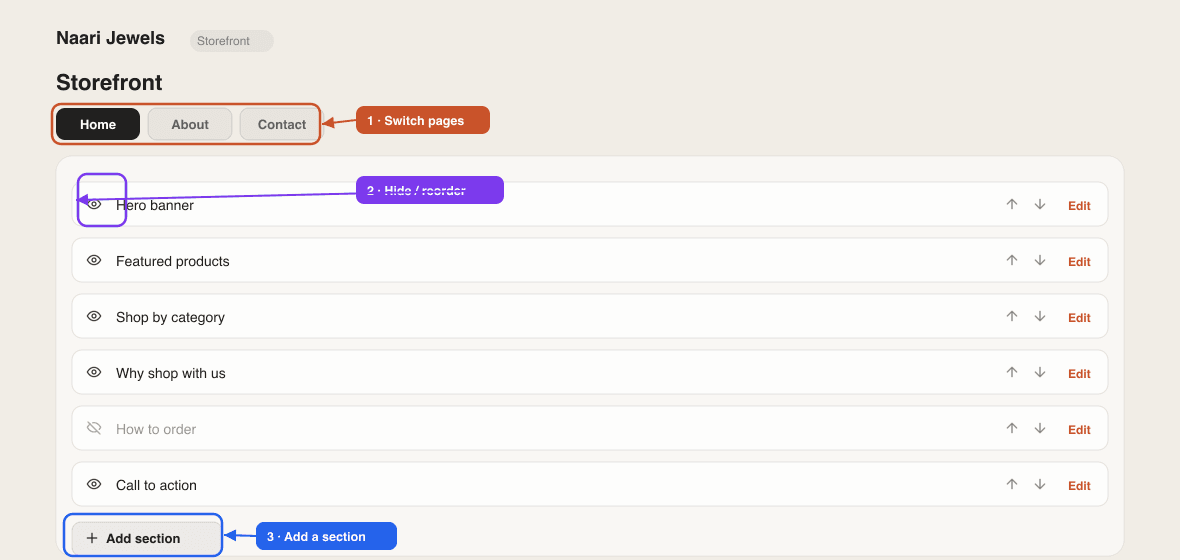
Use the Design tab to edit, add, hide and reorder the sections of your Home, About and Contact pages.
Last updated 23 August 2026
Your storefront pages are built from sections — a hero banner, featured products, category tiles, trust badges, a "how to order" strip, and so on — and you edit them in the Design tab (the screen is titled Storefront Builder). Pick a page, click a section to change its text, images and layout style, hide or reorder sections with the icons on the right, press Add Section to insert more, and Save. Colours, fonts, logo and the menu are set elsewhere; this page is about what each page *shows* and *says*.
Edit your pages
- 1From your store dashboard, open the Design tab.
- 2Pick the page to edit at the top — Home, About or Contact. (The fourth tab, Blog, manages posts rather than sections.)
- 3Click a section's name to expand it. If the section has layout variants you will see Layout Style buttons first; below them, Content holds its fields — headline, text, images, buttons and the like.
- 4Use the eye icon to hide or show a section (hidden ones are dimmed and labelled *Hidden*), the up / down arrows to reorder, and the trash icon to remove a section — click it a second time within a few seconds to confirm.
- 5Press Add Section (top or bottom of the list) to insert a new one. Search by name or filter by Hero, Products, Trust, Content, CTA, Social or Page, then click a card. It is inserted just above the page's CTA section (or at the end if there is none) — use the arrows to move it.
- 6Press Save. The button activates and an *Unsaved changes* label appears whenever there is something to save; you will see *Storefront saved* when it is done. Save writes only the page you are looking at, so finish and save one page before you start editing the next.
- 7Open Open Store to check the result on the live storefront.
What sections are available
Each template ships its own set of sections, tuned to its design. On the Modern Store template, for example, you get:
- Home — Hero, Featured Products, Browse by Category, Image Gallery, Product Marquee, Trust Badges, How to Order, About Preview, Social Embeds and a CTA Banner.
- About — About Hero, Mission Statement, Values, Our Story and an About CTA.
- Contact — Contact Header, Contact Features, Contact Form and an FAQ Hint.
Five add-on sections are available on every template from the Add Section picker — Category Cards, Shop the Look, Stats Band and Reviews Gallery (home page, one of each), plus a Text Block you can add to any page as many times as you like. A section that has reached its limit shows greyed out in the picker.
Text Block is for words in your own voice — a founder note, an announcement, care instructions, delivery terms, a size guide. It has an optional small label, an optional heading and a text box. Leave an empty line between paragraphs, start a line with - for a bullet, and use **bold**, *italic* or [link text](https://…) inside a line; everything else shows exactly as you typed it. Pick Reading column or Wide, and set alignment, colours and text size from the section's Design tab like any other section.
Many sections have Layout Style variants. A hero can be *Centered*, *Split* or *Immersive*; Trust Badges can be a *Grid*, *List* or auto-scrolling *Marquee*; How to Order can be *Steps*, *Timeline* or *Cards*; a CTA can be *Centered*, a *Banner* or *Split*. Switching a style keeps your content — only the arrangement changes — so try a few.
Editing the hero
The hero is the first thing customers see, so it is worth five minutes. Its Content fields are Headline, Subheadline, Badge Text, a Primary CTA and Secondary CTA button label, and a choice of where the main button goes — the All products page (default), A specific product or A custom link, and a Darken background for text readability switch for text over photos. Upload a Hero Image (best at 1920 × 1080, landscape, subject centred) and, optionally, a Mobile Hero Image (1080 × 1350, portrait) that phones show instead, so nothing important is cropped. A Hero Video overrides the images when set.
On templates that offer a Banner height setting, choose Match the image if your banner has the text baked into the artwork — the section becomes exactly as tall as your image on every screen instead of cropping it — and clear the headline and button fields. Sections with fixed-shape image boxes offer an Image fit choice: *Auto* shows portrait uploads whole with black sides, *Fill the box* crops to fill, *Show the whole image* never crops.
Product and category sections
Product sections fill themselves from your catalogue. In Featured Products (and similar grids) use the Featured products picker to choose which products appear and in what order — or leave it empty to auto-show your latest. Some templates add a Max Products Shown number. Browse by Category works the same way with a category picker, pulling the names you defined under Settings → Categories. The hero button can point straight at a single product, which is the simplest way to push a launch.
Looking for colours, logo, menu or blog?
Those have their own homes: Branding for logo, colours, fonts and the announcement bar; Navigation & menu for header and footer links; Pages & policies for policy pages and the products page layout; and the Blog tab inside Design for posts.
Switching templates
Your template is chosen when you create the store and is locked afterwards, because each template's sections and content are different — switching would wipe what you have written. To use a different template, create a new store with it from the templates page. Within your template, the AI-written copy, colour presets and section styles give you plenty of room to make it yours.
Good to know & troubleshooting
- I saved but my About page changes are missing — Save writes only the page that is open, and the *Unsaved changes* label clears for the whole editor. Go back to About, check your edits are still there (re-do them if not) and press Save with About open.
- The live store still shows the old content — confirm you pressed Save and saw *Storefront saved*, then reload the storefront after a minute; pages are cached briefly.
- An image upload is refused — section images must be under 2 MB. Export at the recommended size (1920 × 1080 for a hero) as a JPG and it will fit comfortably. Product photos have a separate 5 MB limit.
- A section I deleted is gone from the picker — add-on sections are limited to one per page; if it is a template section, scroll the picker or search its name. Deleting only removes it from the page, not from the template.
- Featured Products shows nothing — the store has no products yet, or the chosen products were deleted. Add products or clear the picker to auto-show your latest.
- Want the copy written for you? The SitesPlaced Agents button (bottom-right) can rewrite a headline or a whole section on request; the Builder agent proposes the change and you approve it. The agents come with the AI Co-founder plan (₹1,499/month, includes Growth).
Can I add more pages than Home, About and Contact?
The section editor covers those three plus the blog. Policy pages (shipping, returns, privacy, terms) are written under Settings → Pages & policies, and the products, cart and product-detail pages are generated from your catalogue.
Does hiding a section delete its content?
No. A hidden section keeps everything you wrote and simply stops rendering; press the eye icon again to bring it back. Deleting with the trash icon does remove the content.
Why does my hero look different on a phone?
Phones are tall and narrow, so a landscape hero is cropped to the centre. Upload a portrait Mobile Hero Image so phones get a version composed for them, or set Banner height to Match the image.
Can I see a preview before saving?
Not inside the editor — save the page, then press Open Store to view it live. Because you can hide sections and re-save in seconds, experimenting is cheap.
Related articles
Didn't find what you needed?