
How to fulfil an order from new to delivered
Walk an order through Confirm → Shipped → Out for delivery → Delivered, mark COD/manual orders as paid, add a tracking link, and contact the customer.
Last updated 23 August 2026
Fulfilling an order means moving it through five stages in your Orders tab — Pending → Confirmed → Shipped → Out for Delivery → Completed — while you pack it, hand it to a courier and keep the customer informed. Every order lands in Orders (and you get an email), whether it was paid online, placed as COD, or sent over WhatsApp. Here's the full lifecycle.
Find the order
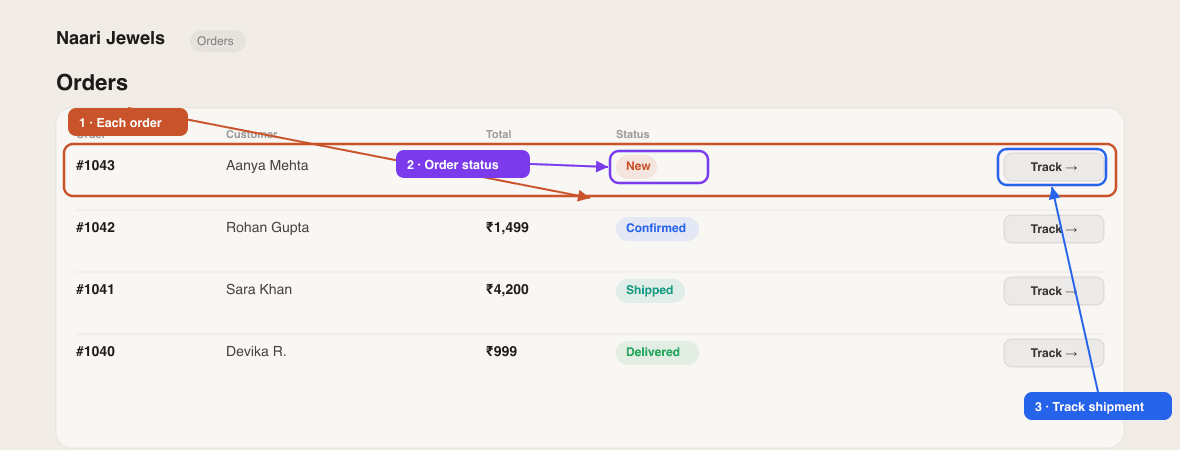
The Orders tab has filters for All, Needs action (everything still Pending or Confirmed), Pending, Confirmed, Shipped, Out for Delivery, Completed and Cancelled, plus a Payment Methods panel that counts your Razorpay, Cash on Delivery and Manual orders. The search box finds an order by name, order number, email, phone or product. Each row shows the product thumbnails, order number, status, whether it came in as direct or whatsapp, and a Paid tag on Razorpay orders.
Step 1 — Check payment
Open the order. The payment block tells you what to do:
- ✓ Paid via Razorpay — ₹X received and verified. Nothing to do; the order is already Confirmed.
- Razorpay with Payment pending — the customer started paying but Razorpay has not confirmed it. Wait a few minutes; if the customer shows you a successful payment, click Mark as paid. This button exists only on pending Razorpay orders. Abandoned payments cancel themselves with the note "Payment cancelled by customer".
- COD or Manual payment with Unpaid — you collect the money yourself. There is no paid switch for these; when the UPI transfer or cash arrives, note it using More options → Comment (Step 3) so it shows in the order's Activity timeline. To send your payment details, click Invoice (PDF) and share it over WhatsApp.
Step 2 — Walk it through the stages
The quickest way is the button on the order row itself — it reads Confirm, Mark shipped, Out for delivery or Mark delivered depending on where the order is, and moves it one step without opening it. Inside the order, the Delivery status stepper does the same with a Mark as … button:
- Confirm — you've accepted the order (Pending → Confirmed). On stores that track stock, COD and manual orders already deducted stock when they were placed; Razorpay orders deducted it on payment.
- Mark shipped — you've dispatched it (Confirmed → Shipped). Inside the order this opens a small form with Tracking link (optional) and Note to customer (optional) — paste the courier's tracking URL and a line like *Shipped via Delhivery, arriving in 3–5 days*, then click Mark shipped. Skip details ships without them. The row's quick button skips the form.
- Out for delivery — it's with the delivery agent (Shipped → Out for Delivery).
- Mark delivered — done (→ Completed).
Step 3 — Jump, comment or cancel
Click More options in the stepper to set any Status directly, add a Comment (optional — visible to customer) and a tracking link, then press Update Order. Comments appear on the customer's Track Order page, so this is also where you note *Payment received, thank you* or *Delayed by 2 days due to rain*. To stop an order, click Cancel order and confirm with Yes, cancel — stock is restored on stores that track it, and a booked Shipmozo courier is cancelled where possible. Razorpay refunds are done from your Razorpay dashboard.
Step 4 — Keep the customer in the loop
Inside the order you'll find one-tap WhatsApp, phone and email links, the Delivery Address, and a copy button (Copy name, phone & address) for pasting into a courier form. Status changes do not email the customer automatically — send a quick WhatsApp with the tracking link, or rely on the Track Order page, where the customer enters their order ID (e.g. ORD-A3X7K2) and sees the status, your comments and the tracking link. On the Growth plan you can also send the order confirmation from your own WhatsApp Business number — see WhatsApp order notifications.
Step 5 — Tidy up
When an order is finished, Archive it to keep your live list clean. Use the Archived button at the top of Orders to switch between Orders and Archived Orders, and restore one anytime. Delete asks *Delete forever? This can't be undone.* — and an order with a live courier booking must be cancelled before it can be deleted.
Shipping with a courier partner
Self-shipping works perfectly — hand the parcel to any courier and paste its tracking link when you mark it shipped. If you connect a partner under Settings → Integrations, the order gets its own shipping panel:
- Shiprocket — click Ship with Shiprocket, enter the Package details (weight and dimensions) and Create shipment, then Book courier (charges wallet), Generate label and Schedule pickup. Tracking updates flow back into the order. Overview: Shiprocket.
- Shipmozo — click Push to Shipmozo, then Auto-assign (one-click) or pick a courier and Book selected courier, Schedule pickup & get AWB (couriers that collect automatically skip this), Get label, and Sync tracking whenever you want the latest status. Overview: Shipmozo.
- A Razorpay order that is still Payment pending cannot be pushed to either partner — ship it once it's paid. A store uses one partner at a time.
Full detail, including webhooks and warehouse setup, is in Manage orders & shipments. Delivery charges the customer paid are stored on the order and shown on the invoice.
On the go
The SitesPlaced Android app shows the same orders with the same one-tap status buttons, so you can confirm and ship from your phone — see the mobile app.
Where is the Mark as paid button for my COD order?
There isn't one — Mark as paid only appears on Razorpay orders stuck on Payment pending. COD and manual orders stay marked Unpaid; record the payment as a comment via More options so it is in the order's Activity timeline.
Does the customer get a message when I mark the order shipped?
Not automatically. They can see the new status and your comment on the Track Order page, and the WhatsApp button inside the order opens a chat with them so you can send the tracking link in one tap.
I cancelled an order by mistake. Can I undo it?
Use More options to set the status back to Confirmed with a comment. Note that stock restored by the cancellation is not re-deducted, so adjust the product's stock by hand if you track it.
Why can't I delete an order?
It still has a courier booking (an AWB or a Shipmozo booking). Cancel the order first so the shipment is cancelled too, then delete it.
Can I set a status that isn't the next one?
Yes — More options lets you pick any status, including going backwards, and add a comment or tracking link at the same time.
Related articles
Didn't find what you needed?