
Manage orders & shipments
See incoming orders in your dashboard, view customer & payment details, update status, and track shipments — optionally via Shiprocket, Shipmozo or Rehbar Post.
Last updated 23 August 2026
Every order placed on your store lands in one place: the Orders tab of your store dashboard. From there you can read the details, update the status as you fulfil it, and track the shipment.
Where your orders live
- 1From your store dashboard, open Orders.
- 2Click any order to open its details — items, quantities, total, payment method, and the customer's name, phone and delivery address.
- 3Move the order through its stages (Pending → Confirmed → Shipped → Out for Delivery → Completed) as you work on it.
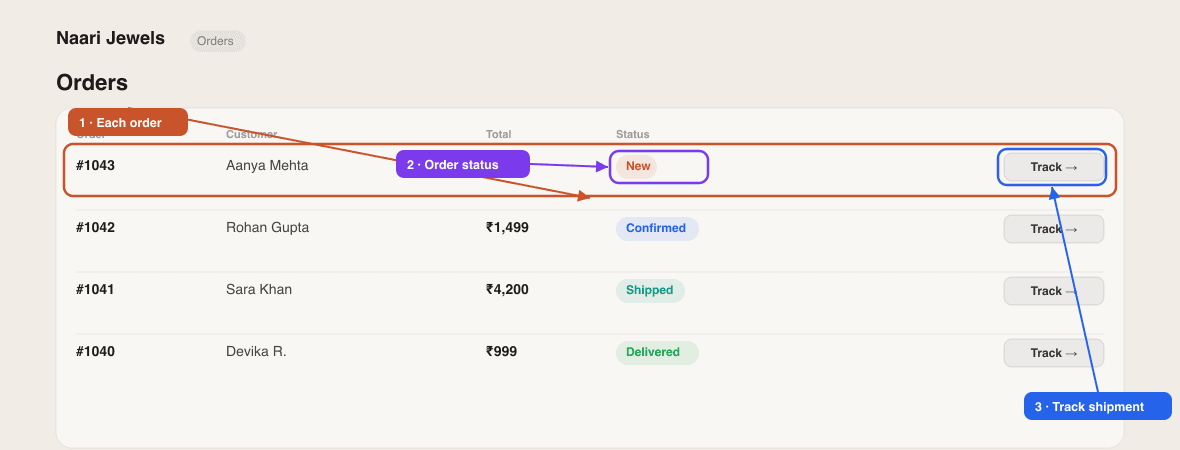
Online (Razorpay) orders show as paid automatically. COD and bank-transfer orders are confirmed straight away and carry an Unpaid badge — collect the payment yourself, and mark the order delivered when it's done.
Ship & track orders
By default you ship orders yourself — pack them and hand them to whichever courier you like. If you'd like SitesPlaced to help generate labels and pull in live tracking, connect Shiprocket.
Connect Shiprocket (optional)
- 1Open Settings → Integrations and find the Shiprocket Logistics card.
- 2Click Set Up Shiprocket and follow the guided steps — sign up (or use your existing account), then enter your Shiprocket email and password to connect.
- 3Once active, open any order that is not cancelled (COD orders included; an online-payment order must be paid first) and use the Ship with Shiprocket panel in it to push the order, book a courier, generate the label and schedule pickup.
- 4In your Shiprocket dashboard, go to Settings → Webhooks and paste the webhook URL (and token) shown on the Integrations card — this is what keeps order status updating automatically.
Connect Shipmozo (alternative)
Shipmozo is a courier aggregator like Shiprocket. A store uses one of the two at a time — activating Shipmozo pauses Shiprocket.
- 1In your Shipmozo panel, create a pickup warehouse (Settings → Warehouses) and copy your public-key and private-key from your profile.
- 2Open Settings → Integrations, find Shipmozo Logistics, click Set Up Shipmozo and paste both keys. We verify them and pick up your default warehouse.
- 3Open any order that is not cancelled (COD included; an online-payment order must be paid first). The Shipmozo panel walks you through four steps: Package (push the order), Book a courier (pick from live rates, or use one-click Auto-assign), Schedule pickup, Shipping label.
- 4Auto-assign needs a rule in your Shipmozo panel under Settings → Auto assign. Some couriers collect automatically — those show an Auto pickup tag and skip the pickup step.
- 5Shipment status is pulled from Shipmozo every 30 minutes (or instantly with Sync tracking). Cancelling an order cancels its Shipmozo shipment too.
Connect Rehbar Post (alternative)
Rehbar Post is a third courier aggregator. As above, a store uses one aggregator at a time — activating Rehbar Post pauses Shiprocket and Shipmozo.
- 1In your Rehbar Post account, create a pickup warehouse and copy your API key.
- 2Open Settings → Integrations, find Rehbar Post Logistics, click Set Up Rehbar Post and paste the key. We verify it and pick up your default warehouse.
- 3Open any order that is not cancelled (COD included; an online-payment order must be paid first). The Rehbar Post panel walks you through three steps: Package (push the order), Book a courier (pick from live rates, or take the cheapest surface/express), Shipping label.
- 4Booking the courier is also what issues the tracking number and schedules the pickup — there is no separate pickup step.
- 5Shipment status is pulled from Rehbar Post every 30 minutes (or instantly with Sync tracking). Cancelling an order cancels its Rehbar Post shipment too.
Need to send a parcel back? On a booked Rehbar Post order, use Book a return pickup at the bottom of the shipping panel. The return gets its own tracking number, so the original one your customer is watching stays untouched.
Moved or renamed your warehouse in Shipmozo or Rehbar Post? Press Refresh warehouse on the Integrations card instead of reconnecting.
Self-shipping is totally fine
You don't need Shiprocket to run your store. Plenty of sellers pack orders themselves and share a tracking link over WhatsApp. Connect Shiprocket only when you want courier automation.
Customers can also follow their own order from your storefront's Track Order page — keep that link in your menu (see Edit your store menu).
Courier rates, serviceable pincodes and delivery times come from the courier you use (or from Shiprocket / Shipmozo / Rehbar Post) — SitesPlaced doesn't set or guarantee them. Booking a courier charges your aggregator wallet. Always confirm coverage and timelines with your courier.
Didn't find what you needed? Ask an AI assistant about this guide. It answers in seconds.