

How to decorate your online store for Diwali without a designer
You can make a store look festive in one afternoon by changing six things: one accent colour, the banner at the top of the home page, the announcement bar, a Diwali collection, your product photos, and a gift-ready badge on the right products. You don’t need a designer or a new template. On SitesPlaced, all six are on the free plan.
Key takeaway: decorate the things that are quick to change back, and leave your logo, layout and menu alone. A returning buyer should still know it is your shop. And every festive touch should also tell the shopper something useful: what is on offer, what can be gifted, and the last date to order for delivery before Diwali on Sunday 8 November 2026.
TL;DR
- • Colour: change one accent colour to a deep festive shade. Keep the background light.
- • Banner: one photo of your own products with diyas or marigolds, in two sizes (wide for computers, tall for phones).
- • Announcement bar: your offer and your order-by date, as two short lines.
- • Collection: a category called Diwali with its own page and link.
- • Photos and badges: show the gift box, and mark what is gift-ready.
- • After 8 November: change it all back within a few days.
1. Colours and fonts: change one thing
The accent colour is the colour of your buttons, links and small highlights. Changing only that gives the whole store a festive feel while the pages stay clean and easy to read. Pick a deep shade. Bright yellow and light gold look festive on a poster, but white button text on them is hard to read.
| Shade | Colour code | Good for |
|---|---|---|
| Deep maroon | #7A1F1F | Buttons and links. Reads clearly on white and cream. |
| Burnt orange | #C9532A | A warmer, brighter accent that is still easy to read. |
| Dark gold | #9A6B00 | Festive without the glare of bright yellow. |
| Peacock green | #0F5C4D | For jewellery and ethnic wear against warm photos. |
Our suggestions, not built-in presets. A colour code (also called a hex code) is the six-character name of a colour that you can paste into a colour picker.
On SitesPlaced: open Settings → Branding. Type or pick an Accent colour, or choose one of the palettes under Colour theme, which are made for your template. Choosing a palette also changes the accent colour, so if you want your own accent, pick the palette first and the accent second. Nothing else changes: your products, sections and text stay as they are.
Before you change anything, write down your current accent colour code. That is your way back. As for fonts, we suggest leaving the Brand font alone. A new font applies to every line of text on the store, and a decorative one makes prices and sizes harder to read on a phone. Put the festive lettering in your banner image instead.
2. A festive hero banner, made with your phone
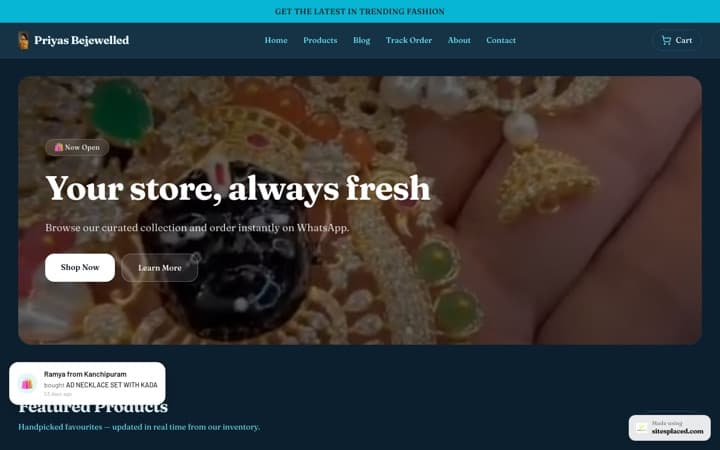
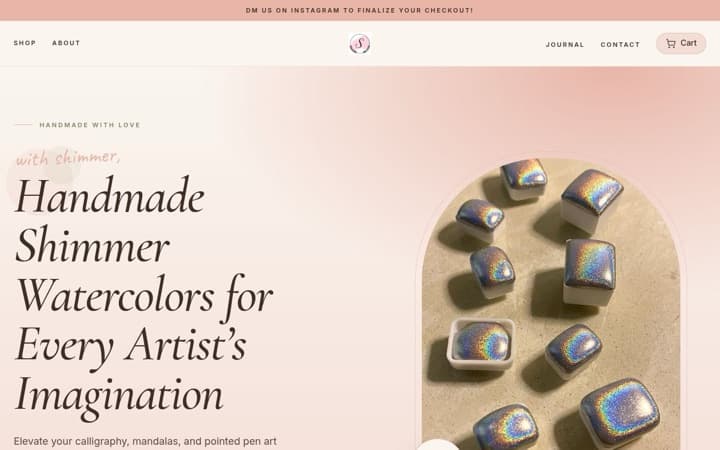
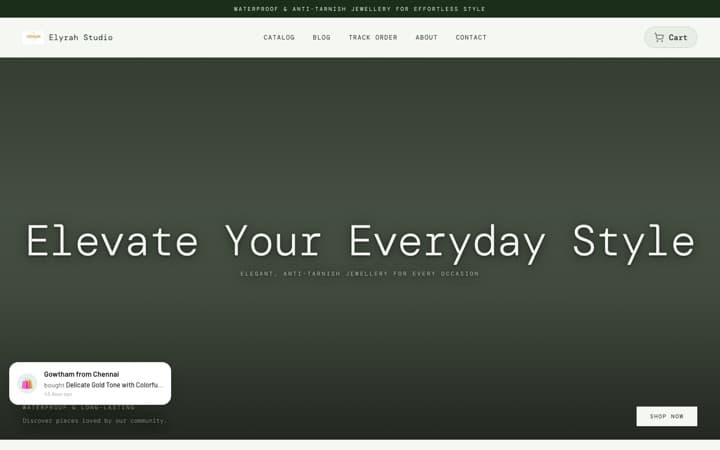
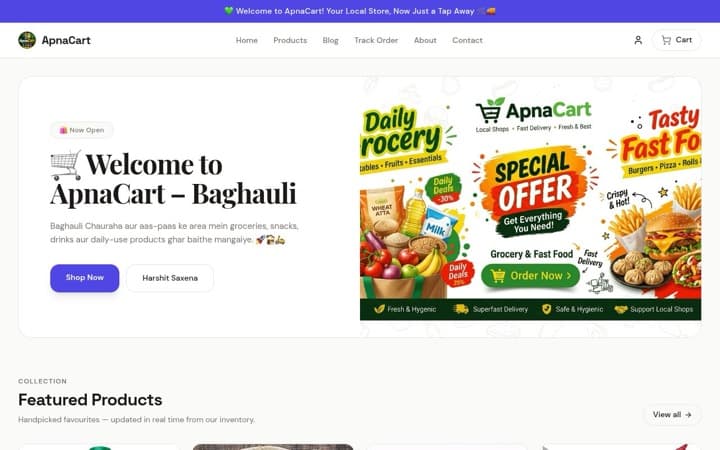
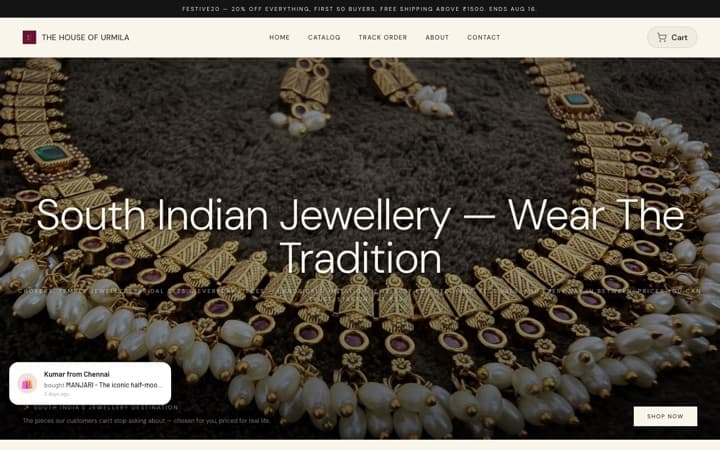
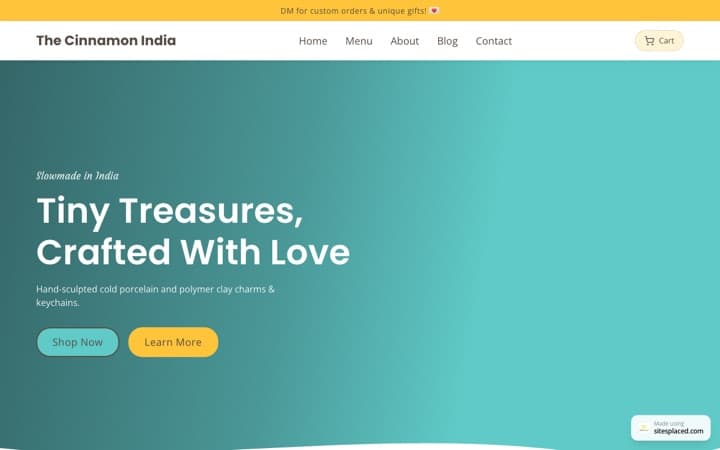
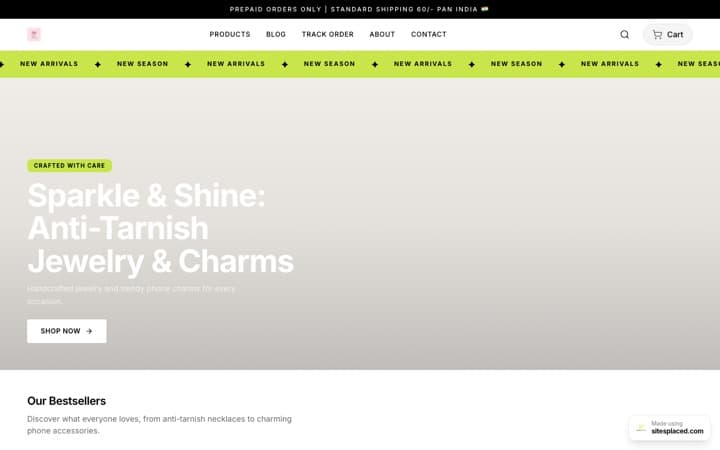
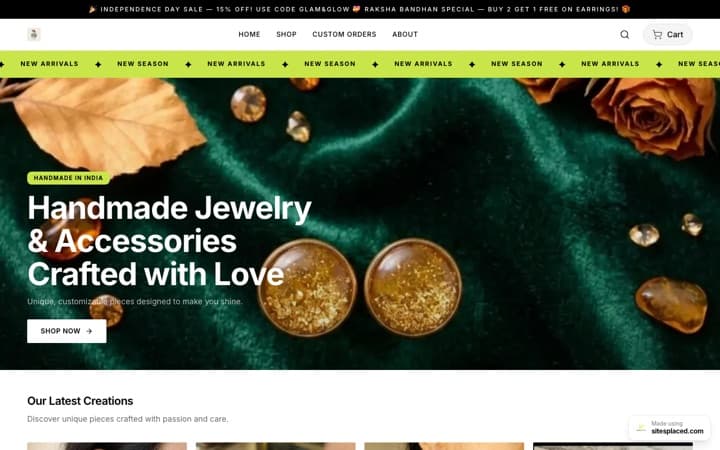
The hero is the large banner at the top of your home page. It is the first thing a shopper sees. You don’t need a designed poster. A good photo of your own products does more:
- Set a small scene. Put three or four of your products on a plain cloth with a few lit diyas, marigold flowers or a string of lights. Shoot near a window, late in the afternoon.
- Leave empty space on one side or at the top, where the headline will sit.
- Take it twice: once with the phone held sideways (wide), once upright (tall).
- Use your own products. A stock photo of someone else’s hamper sets an expectation your parcel won’t meet.
On SitesPlaced: open the Design tab, keep Home selected, and click the Hero section. Upload the wide photo as the Hero Image (best at 1920 × 1080) and the tall one as the Mobile Hero Image (best at 1080 × 1350). Phones show the tall one, so nothing important is cut off. Each must be under 2 MB. The phone image is on every current template except the Grocery Store.
Then write the words. Badge Text is the small label above the headline: “Diwali 2026”. The Headline should say what you sell for the festival, such as “Diwali hampers, packed by hand”. Under Main button opens, choose A custom link and type /diwali to send shoppers straight to your Diwali collection (step 4).
If you already have a poster with the words in the picture, the Premium Store and Simple Fashion Store templates have a Banner height setting. Set it to Match the image and clear the headline boxes, and the whole poster shows without cropping. On other templates, keep words out of the picture and type them in the headline instead. All of this is free. More detail is in the help article on hero banner images.
3. The announcement bar
The announcement bar is the thin strip across the top of every page. For Diwali it has two jobs: say the offer, and say the last date to order. Keep each line short enough to fit on a phone:
- • “Diwali gifting is open. Free delivery above ₹999.”
- • “Order by 28 October for delivery before Diwali.”
- • “Gift wrap and a handwritten note on request.”
The date in the second line is only an example. Ask your courier how long delivery takes at this time of year, and work out your own.
On SitesPlaced: Settings → Branding → Announcement bar (top of store). Type the first line, then press + Add another line for more. With two or more lines, shoppers see one at a time, changing every few seconds, with arrows to tap. This is free, and you change it by hand. Only the AI Co-founder plan (₹1,499/month) can run an announcement with a start and an end time through scheduled promotions. For wording ideas, see Diwali sale ideas for a small business.
4. A Diwali collection with its own link
A shopper who taps your Diwali reel wants to see Diwali products, not your whole catalogue. Put your festive items in one place with its own link. If you have many, make two or three groups: “Diwali gifts under ₹999”, “Hampers”, “For the home”.
On SitesPlaced: open Settings → Categories, add a category called Diwali, and save. Then tick it on each festive product. A product can sit in more than one category, so nothing moves out of its usual place. The category gets its own page at yourbrand.sitesplaced.site/diwali (or yourbrand.com/diwali on your own domain). Put that link in your Instagram bio and WhatsApp messages.
To show it on the home page, upload a photo for the category on the same Categories screen, then add the Category Cards section from Design → Add Section. To add it to the menu, go to Settings → Navigation & menu, add a link, choose Custom link… and type diwali. If you sell hampers, the free build-your-own hamper page is covered in how to sell Diwali gift hampers online.
5. Gift-ready product photos
During Diwali, many of your buyers are buying for someone else. They want to know what the person will see when the parcel is opened. You don’t need to reshoot everything. Add one or two photos to each product you expect to sell as a gift:
- The product in its gift box, lid off, as it will arrive.
- The closed box with the ribbon or sticker, next to a hand or a diya so the size is clear.
- The note card, if you offer one.
Keep your first photo clean and plain, because that is the one on the product card. Put the festive photos second and third. Show only packaging you will really send. Photo basics are in how to take better product photos.
6. Festive product badges
A badge is a small icon with a few words, shown on a product’s page. It answers a question before the shopper asks it: can this be gifted, will it arrive in one piece?
On SitesPlaced: open a product and find the Product badges card. Tap a preset such as Gift Ready, Carefully Packed, Handmade or Made in India, or press Custom badge to write your own, such as “Free gift note”. You can edit the words of any badge. Each product can have up to eight, but two or three are easier to read. Badges are free on every plan.
Only claim what is true for that product. “Gift Ready” on an item you send in a plain courier bag will cost you a review. And if a badge mentions a date, remember you will have to remove it by hand.
What not to do
- Don’t change your logo. It is on your boxes and in your buyers’ memory.
- Don’t add moving sparkles, falling lights or music. They slow the page on a phone and hide the products.
- Don’t stack five banners. One good banner and one bar are enough. The products should start on the first screen.
- Don’t use a countdown that restarts, or “only 2 left” when that isn’t true. Your real order-by date is reason enough to hurry.
- Don’t switch template. On SitesPlaced, changing template means making a new store. The steps above work on the one you have.
Everything in one table, and what to change back
| What you change | Where on SitesPlaced | Plan | Change back after Diwali? |
|---|---|---|---|
| Accent colour or colour theme | Settings → Branding | Free | Yes. Note the old colour first. |
| Hero banner and phone banner | Design → Home → Hero | Free | Yes. Keep the old image file. |
| Announcement bar | Settings → Branding | Free (by hand) | Yes, on your order-by date and again after Diwali |
| Diwali category | Settings → Categories | Free | Untick it on products, or rename the range |
| Product badges | Products → open a product → Product badges | Free | Remove any badge that names the festival |
| Welcome popup | Settings → Sales boosters | Growth, ₹499/month | Switch off or reword |
| Timed announcement and coupon | Scheduled promotions | AI Co-founder, ₹1,499/month | Ends by itself at the time you set |
The bar changes twice. On your order-by date, swap it to “Orders placed now arrive after Diwali”, so nobody orders a gift that will be late. If you stop shipping for a few days, Settings → Checkout → Pause ordering (free) stops new orders and shows your own message in the bar until you untick it.
Then, within a few days of 8 November, put back your usual banner, bar and accent colour, and remove any badge that names the festival. A store that still says “Happy Diwali” in late November looks like nobody is looking after it. What to do with the quiet weeks that follow is in what to do after Diwali.
A festive store still has to open fast
Most festive shoppers arrive on a phone from Instagram or WhatsApp. Two things keep a decorated store quick. First, keep banner files under the 2 MB limit and upload the separate phone image, so phones never download the large computer banner.
Second, on every paid plan (Starter at ₹199/month and up), your store’s pages are kept ready close to shoppers and answer about 4× faster than on the free plan: about 75 ms instead of about 330 ms, measured on live paid stores on 28 September 2026. “Answer” means how soon the page starts arriving on the phone, before the photos load. It is not the full page load. Your edits, prices and stock changes still show at once. Starter also gives you your own domain and removes the SitesPlaced badge. The code FREE7 gives 7 days free on Starter or Growth when you set up autopay; cancel before the first charge and you pay nothing. If your pages feel slow today, start with why is my online store slow.
Frequently asked questions
How do I make my online store look festive for Diwali?
Change six things: one accent colour, the banner at the top of the home page, the announcement bar, a Diwali collection page, your product photos, and a gift-ready badge on products you can gift-wrap. On SitesPlaced all six are on the free plan and take an afternoon. Leave your logo and layout alone so returning buyers still recognise the store.
What size should a Diwali banner be for my store?
On SitesPlaced, make two: 1920 × 1080 pixels, landscape, for the main Hero Image, and 1080 × 1350 pixels, portrait, for the Mobile Hero Image that phones show instead. Save each as a JPG under 2 MB. Keep the product and any words near the centre, because the edges can be cropped.
Can my Diwali banner and announcement switch on and off by themselves?
On the AI Co-founder plan (₹1,499/month), a scheduled promotion can run a coupon and an announcement bar with a start and an end time. On the free, Starter and Growth plans you change the announcement bar by hand. The home page banner and colours are changed by hand on every plan.
Will changing my store’s colours delete my content?
No. A colour theme or accent colour changes colours only. Your products, sections and text are not touched, and you can switch back whenever you like. Write down your current accent colour code before you change it, so going back takes a few seconds.
Where do product badges show?
On the product’s own page. You add them in the product form under Product badges: tap a preset such as Gift Ready or Carefully Packed, or add a custom badge with your own words. Each product can carry up to eight. They are free on every plan.
Should I change my logo for Diwali?
We suggest you don’t. The logo is how returning buyers recognise you, and it is also printed on your boxes and stickers. Decorate around it with the banner, colours and announcement bar, which are quick to change back.
What should I change back after Diwali?
The announcement bar, the home page banner, any badge or category that names the festival, and your accent colour if you changed it. Do it within a few days of Sunday 8 November 2026. A store still showing a Diwali banner in late November looks unattended.
No store to decorate yet? Open one today, free
Pick one of 16 free templates, add your products, set your colours and banner, and publish. 0% commission, with UPI, cash on delivery and WhatsApp checkout included.