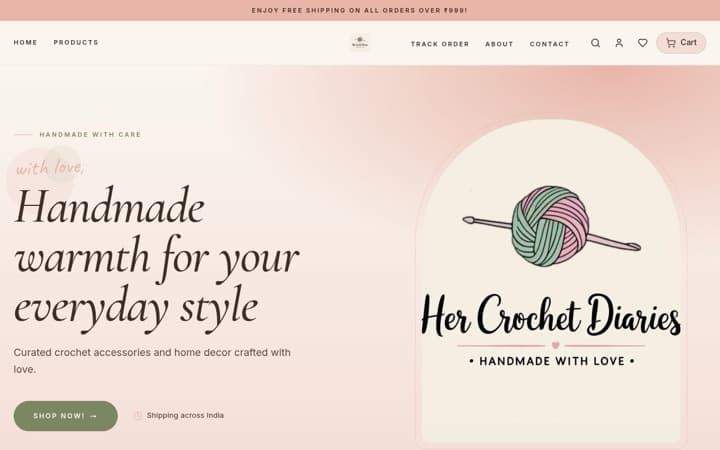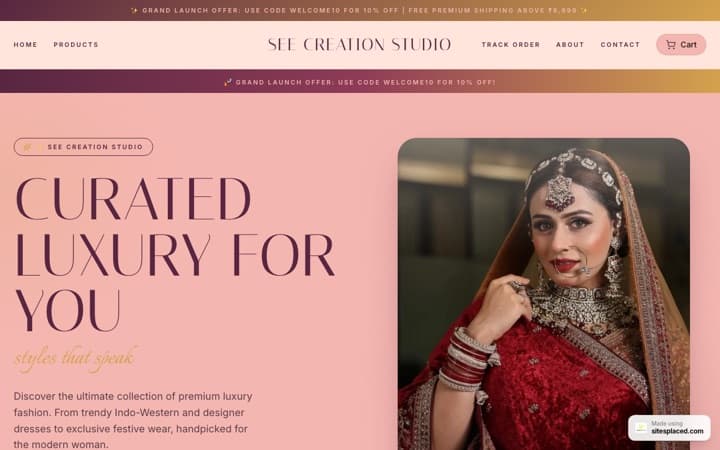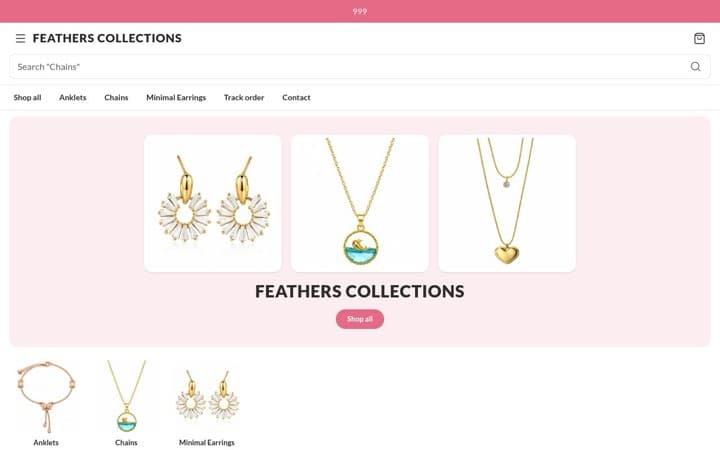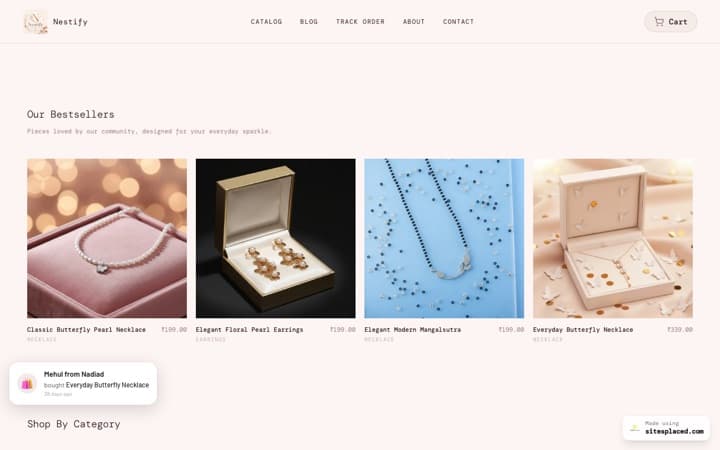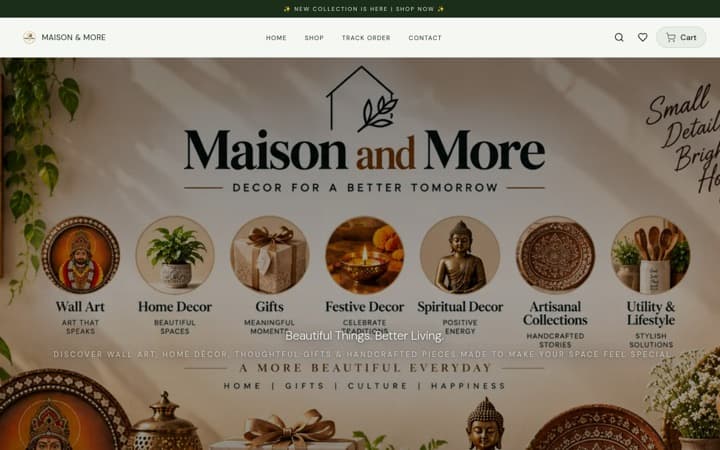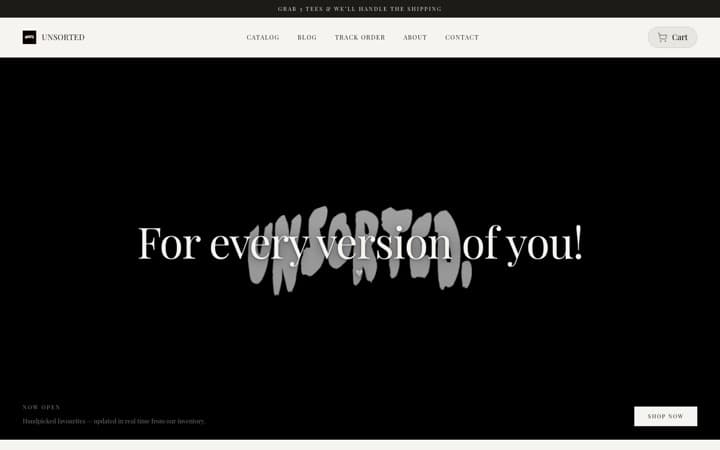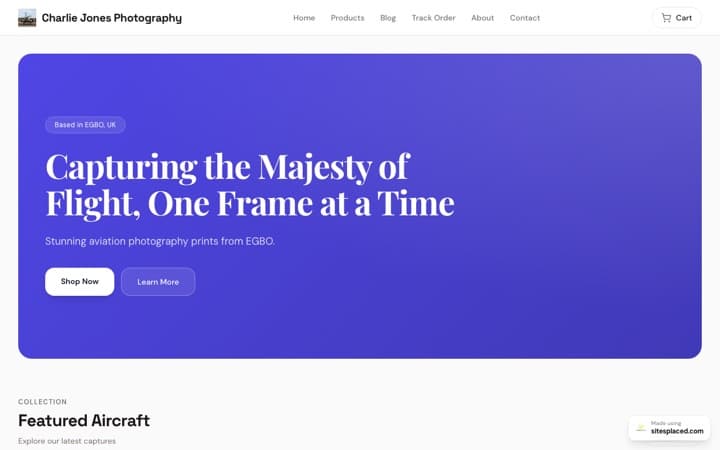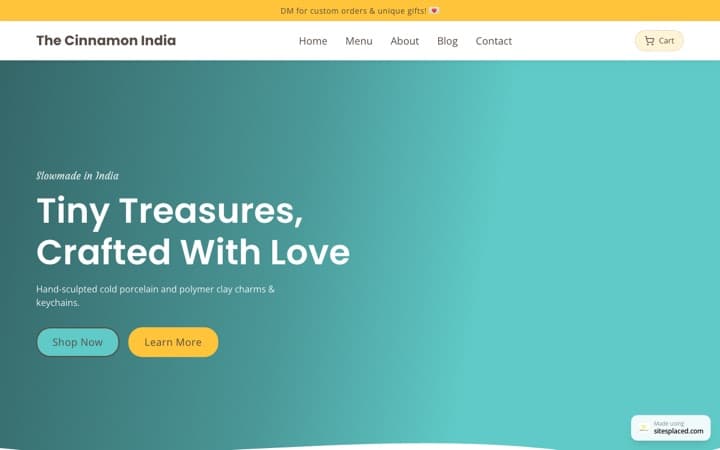


AI product photos for small businesses: studio-quality images without a studio.
A studio shoot is the one expense most small sellers skip, so most small stores look like most small stores: a product on a bedsheet, shot under a tube light. In 2026 the fix is not a studio. It is one clean phone photo per product and a few rupees of AI per image. This guide is the whole process — what to shoot, what to generate, what is honest to show, exactly what size each platform needs, a prompt pattern that works, and what it really costs.
What AI can and cannot do to a product photo
AI image tools are very good at everything around the product: removing or replacing the background, placing the product on a surface in a scene, changing the light, extending the frame for a different crop, adding a hand or a model, and producing five variations of the same idea for an ad test. They are bad at the product itself. A blurry or badly lit base photo does not get fixed — the tool invents detail to fill the gaps, and invented detail on a product is a lie. Embroidery patterns, printed text, logos, the exact shade of a fabric and the shape of packaging are the things generators most often change.
So the rule for the whole guide is simple: the product pixels come from your camera; AI changes everything around them. Every good AI product image starts with a real photo of the real item.
Your product must look like your product
When a generated image changes the print, the colour or the shape, the buyer receives something different from the photo. That is a return, a bad review, and under the Central Consumer Protection Authority's guidelines on misleading advertisements, a genuine legal risk. Compare every generated image against the physical item before it goes live. Budget one minute per image for this.
Step 1: the base photo — a phone checklist
You need one clean photo per product that the AI can cut out. Any phone from the last five years is enough. The light and the edges matter far more than the camera.
- Window light, not tube light. Shoot beside a window in the morning or late afternoon, with the main light on one side. Switch off the ceiling light — mixing daylight with a tube light gives the yellow-green cast that makes products look cheap.
- A plain background with no corner. A sheet of white chart paper from a stationery shop, curved up behind the product so no edge or corner is visible. A clean edge between product and background is what makes background replacement look real.
- Phone at the product's height. Crouch. Shooting down at a product makes it look small. For clothing, a flat lay shot from directly above or a hanger against the wall; for jewellery, a plain card and the phone's macro or 2× mode; for food, shoot within minutes of plating.
- No zoom, tap to focus, no beauty mode. Step closer instead of zooming. Tap the product on screen so the phone focuses and exposes on it. Turn off portrait mode, beauty filters and "AI enhance" — they blur edges the AI later needs.
- Clean the product first. Lint, dust, fingerprints on packaging, a crease in the fabric — AI does not remove these reliably, and they are visible at product-page size.
- Five angles per product. Front, three-quarter, side, back, and one detail close-up (the stitching, the clasp, the label). The three-quarter shot is usually the best base for lifestyle scenes.
- Highest resolution, original file. Shoot at full resolution and copy the original file to your computer. Do not send it to yourself on WhatsApp — WhatsApp compresses it, and compression artefacts show up as jagged edges after a cutout.
Step 2: background replacement and lifestyle scenes
Every product needs three kinds of image. A clean cutout on white or light grey is the main product-page image and the one buyers compare across stores. A lifestyle scene shows where the product lives — a kurta on a chair, a candle on a dinner table — and is what stops a thumb on Instagram. A detail crop answers the "what is it made of?" question. The first two are where AI earns its keep. If you sell on SitesPlaced, the creative studio in the AI Co-founder tab does steps 1 to 3 below from the base photo in one go (details in the last section); the checks in steps 4 and 5 still apply.
- Cut the product out of the base photo with a background-removal tool (most editing apps have one built in now). Check the edges at 200% zoom — hair, fringe, lace and glass are the trouble spots.
- Save one version on plain white or a very light grey. That is your product-page cover image.
- For the scene, give the generator the cutout as a reference image and describe only the setting, surface, light and mood. Tell it explicitly to keep the product exactly as attached.
- Check the shadow and the reflection. A product lit from the left sitting in a scene lit from the right is what makes an image look pasted. Regenerate rather than accept.
- Keep the scene quieter than the product. If your eye goes to the props first, the scene is wrong.
Scenes that work for Indian sellers, by category: kurtis and sarees draped on a cane chair in a sunlit courtyard; jewellery on a marble slab or raw silk in soft morning light; candles and home fragrance on a linen tablecloth at evening; skincare on a bathroom shelf with white tiles; food and sweets on a banana leaf or a brass thali; kids' wear on a cotton dhurrie. Describe surfaces and light you have actually seen — the generator is better at real rooms than at moods.
Step 3: model, hand-held and UGC-style shots — and what is honest
AI can put your product in a hand, on a model, or in a casual "customer photo" style image with a phone-camera look. These are the images that make a small store look like a brand, and they are also where sellers get into trouble. The line is not complicated: the product must be real, the people can be generated, and nobody should be misled about which is which.
- Label AI-generated people where it matters. A model wearing your kurta who does not exist is fine for a mood image. Say so — "AI visualisation; product photographed by us" in the caption or as a small note on the product page. Meta labels content it detects as AI-made and requires disclosure of digitally altered content in some ad categories; add the label yourself rather than have the platform do it for you.
- Never fake a customer. No generated review photos, no invented "happy buyer" UGC posted as if a real person sent it, no before-and-after images. A fake customer photo is a fake testimonial, and once a buyer spots one, every real review on your store loses its value.
- A generated model tells the buyer nothing about fit. An AI figure wearing size M is not a size M photo. Keep a real measurement chart on the product page and, if you can, one real photo of the product worn by a real person with their permission.
- Choose models who look like your customers. Skin tones, ages and body types your buyers recognise. Do not generate a likeness of a celebrity or an influencer — that is a separate legal problem entirely.
- Hands are the easy win. A hand holding a soap, a mug, a bangle, a pack of tea — hand-held shots read as personal, are rarely mistaken for a testimonial, and generators do them well when you specify plain nails and a neutral sleeve.
Step 4: the size each platform needs
Generate one master image at the largest size the tool allows, then crop for each place. Never upscale a small image for a large slot — it is the one edit everybody can see.
| Where | Size and shape | Notes |
|---|---|---|
| Store product page (SitesPlaced) | Square 1:1 or portrait 4:5, at least 1000 px wide; JPG, PNG or WebP under 5 MB | SitesPlaced resizes and optimises on upload. The first photo is the cover; the second can show on hover on product cards. |
| Instagram feed | 1080 × 1350 px (4:5) | Takes the most screen in the feed. 1080 × 1080 square is fine too. Keep the product in the centre 80% so the square preview on your profile grid still shows it. |
| Instagram Reels and Stories | 1080 × 1920 px (9:16) | The caption, buttons and your handle cover the top and bottom. Keep the product and any text in the middle of the frame. |
| WhatsApp catalog | Square 1:1, 1024 × 1024 px is plenty | WhatsApp compresses catalog images heavily. Avoid small text on the image; put the price in the item's price field, not on the picture. |
| Meta ads — feed | 1080 × 1080 px (1:1) or 1080 × 1350 px (4:5) | Meta stopped enforcing its old 20% text limit; keep text small anyway so the product reads at thumbnail size. One product per image for a first campaign. |
| Meta ads — Stories and Reels placements | 1080 × 1920 px (9:16) | Same safe zone as Instagram Stories. Export both 4:5 and 9:16 from the master so one campaign covers every placement. |
Sizes are the platforms' current recommendations as of September 2026; they change occasionally, and each platform re-compresses on upload, so always check the live post on a phone.
A prompt pattern that works
Most bad AI product images come from bad prompts, and most bad prompts are a pile of adjectives. Generators respond to concrete, physical description. Use the same five parts every time, in this order, then add what it must not do.
Product + surface + light + angle + mood, then the negatives
Product: a hand-block-printed cotton kurta in indigo with a white floral print, exactly as in the attached photo — keep the print, colour and shape unchanged. Surface and setting: draped over a cane chair in a sunlit courtyard with a terracotta floor and a whitewashed wall. Light: soft morning light from the left, one gentle shadow. Angle: eye level, product filling about two-thirds of the frame. Mood: calm and minimal, nothing else in the scene. Do not: change the print or the colour; add text, logos or watermarks; add extra hands, extra products or people; blur any part of the product.
- Name the material. "Cotton", "brass", "terracotta", "glass" changes how the tool renders light on the product. "Premium" and "aesthetic" change nothing.
- Always attach the base photo and say "as attached". A text-only prompt produces a generic product, not yours.
- One light source, and say where it is. Then the shadow lands in the right place and the image stops looking pasted.
- Ask for a square master and crop later. Cropping is free; regenerating for each aspect ratio is not.
- Write the negatives every time. Extra fingers, extra products, floating text and invented logos are the four most common failures, and they only go away if you say so.
How many variants to make: for a product page, four to six scene variants, pick one. For an ad, three visually different ideas (surface, light, hand-held versus still) in two crops each — six images — run them for a week and keep the winner. Beyond about eight variants you are choosing by mood, not by data, and paying for images nobody will see.
What it costs — the reality
With current image models, a generated image costs roughly ₹3 to ₹20 depending on the model, the resolution and whether you pay per image or through a monthly subscription. Treat that as approximate — pricing changes month to month, and tools that bundle credits hide the per-image number. A clean base photo costs you time only. So a catalogue of 30 products with five generated images each — 150 images — lands somewhere between a few hundred and a few thousand rupees, plus the regenerations you throw away.
For comparison, SitesPlaced's own creative studio (on the AI Co-founder plan) publishes its prices: a draft costs 2 credits, a standard image 12, a premium 2K image 25, an ultra image 45, and a carousel slide 12, where 1 credit = ₹1. The plan includes 1,500 credits a month, the cost shows before every generation, and failed generations are refunded automatically.
- Generate at the size you need. Rendering everything at the maximum resolution and then shrinking it for WhatsApp is money spent on pixels nobody sees.
- Batch the work. One weekend for the whole catalogue is cheaper in attention than one product a day, and the images come out consistent.
- Regenerate only the images that fail the "looks like my product" check. A slightly different scene is not a reason to spend again.
- Try free tiers first. Most tools give enough free credits to test three or four products before you pay for anything.
- Count your own checking time. If an image takes ₹10 to generate and ten minutes to inspect and fix, the ten minutes is the real cost.
On SitesPlaced: the creative studio, and where the images go
Everything above ends with an upload. On a SitesPlaced store, open a product and add photos to its gallery — several at once, up to 5 MB each. The first photo is the cover on product cards and the product page; drag to reorder, and add image alt text under each photo so Google Images and screen readers know what it shows. Every size or colour row in Options can carry its own photo, so the product page jumps to the right image when a buyer picks a colour. Paste a video link or upload a video up to 50 MB, and an Instagram Reel link, and both appear on the product page. SitesPlaced optimises and resizes every upload automatically; storage is 500 MB on the free plan and 5 GB on Growth, which is thousands of optimised photos.
One setting is worth turning on once you have lifestyle scenes: Product image hover, in your store settings. With it on, product cards swap to the second image when a shopper hovers — put the clean cutout first and the lifestyle scene second, and the listing page does the storytelling for you. Products with one image are unaffected.
SitesPlaced also generates the images. The creative studio, in the AI Co-founder tab of your store dashboard, takes one phone photo of a product and makes the rest: 12 styles — studio packshot, lifestyle scene, hand-held UGC, flat lay, premium editorial, food hero, offer poster, price reveal, launch announcement, story or Reel cover, Diwali gifting, and festival sale banner — in 5 sizes (1:1, 4:5, 9:16, 16:9, 3:4) and 4 quality tiers from a 2-credit draft to a 45-credit ultra image. It keeps the product identical to your photo, renders the exact headline, offer and call to action you type onto the image, and can attach the result straight to the product gallery or set it as the cover. Everything above about base photos, honesty and checking still applies: you look at every image against the real product before it goes live.
Under the hood it runs through OpenRouter — GPT Image 2 for draft, standard and ultra images, Gemini 3 Pro Image for the 2K premium tier, with Seedream and Nano Banana 2 as fallbacks — chosen for quality per rupee, with automatic fallbacks if a model fails. The Carousels tool next to it turns a topic into 3–7 rendered slides in one consistent style, with the caption and hashtags written. AI video is on the roadmap, not live.
How to get it
The creative studio, carousels, the four agents (Brix, Ledger, Bloom and Beacon), the campaign planner, SEO audit and retargeting kit all come with the SitesPlaced AI Co-founder plan: ₹1,499/month (₹14,990/year; $29.99/month outside India), everything in the ₹499 Growth plan included, 1,500 AI credits every month. Top-ups from ₹499 for 500 credits never expire while you subscribe. Subscribe from /pricing or the upgrade prompt in your dashboard; the full tour is at /ai-cofounder. Questions? WhatsApp +91 95171 56355 or email admin@sitesplaced.com.
FAQs
Is it legal to use AI-generated product photos on my online store in India?
Yes, as long as the product in the image is accurate — the same colour, print, shape and contents the buyer receives. The risk is not the AI, it is misrepresentation: an image that shows something different from what ships can be a misleading advertisement under the Central Consumer Protection Authority's guidelines, and it is also simply a return waiting to happen. Generated people and scenes are fine; label them where a buyer might assume they are real.
Do AI-generated product photos sell better than real ones?
A clean cutout plus a good lifestyle scene usually beats a bedsheet-and-tube-light photo — but that is a lighting and background win, not an AI win. Where AI helps is doing it for 30 products in a weekend at a few rupees each. Keep at least one plainly real photo per product, and test: put the new images on your five best sellers first and watch the visit-to-order rate for two weeks before redoing the whole catalogue.
Which AI tool should I use for product photos?
Any tool that takes your photo as a reference image and keeps the product unchanged while it builds the scene. That one feature separates useful tools from toys. Beyond that, pick on price per image and whether it exports at the sizes you need. Try the free tier on three products before paying. You do not need more than one image tool and one editing app. If you sell on SitesPlaced, the creative studio in the AI Co-founder tab does exactly this from the product's own photo, with the credit cost shown before each image, so you may not need a separate tool at all.
What size should product photos be on SitesPlaced?
Square or portrait, at least 1000 px wide, in JPG, PNG or WebP under 5 MB each. SitesPlaced resizes and optimises on upload, so upload the largest clean version you have. The first photo is the cover; if you turn on Product image hover, the second photo shows on product cards on hover.
How much does AI product photography cost per image?
Roughly ₹3 to ₹20 per generated image with current models, depending on the tool, the resolution and whether you buy credits or a subscription. That is an approximate range as of September 2026 and it changes often. On SitesPlaced's creative studio the prices are published: 2 credits for a draft, 12 for a standard image, 25 for premium 2K, 45 for ultra, with 1 credit = ₹1 and 1,500 credits included in the AI Co-founder plan each month. The larger cost is your time checking each image against the real product.
Does SitesPlaced generate product photos?
Yes, on the AI Co-founder plan. The creative studio in your store dashboard takes one phone photo of the product and makes packshots, lifestyle scenes, hand-held UGC-style shots, flat lays, offer posters, price reveals, launch announcements, story covers and festival banners — 12 styles, 5 sizes, 4 quality tiers — keeps the product's shape, colour and label, and can attach the result to the product gallery or set it as the cover. It costs 2 to 45 credits per image (1 credit = ₹1) from the plan's 1,500 monthly credits, and failed generations are refunded. Check every image against the real product before you use it. The plan is ₹1,499/month and includes everything in the Growth plan.
Put the photos to work on a real store.
Unlimited products and photo galleries, 0% commission, Razorpay, PhonePe and Cashfree on your own account, COD and WhatsApp checkout on the free plan. The Growth plan adds your own domain, 5 GB of storage, analytics and product reviews — free for 7 days with autopay. The AI Co-founder plan (₹1,499/month, Growth included) adds the creative studio and the AI team, with 1,500 credits a month.
See the plans →